0 Comments
0 Shares
70 Views
Directory
Discover new people, create new connections and make new friends
- Please log in to like, share and comment!
- #RSTA
#Task : Account Creation
#Class: Foundation Level
#Day No: 4
#Made By Me
Total Post:4
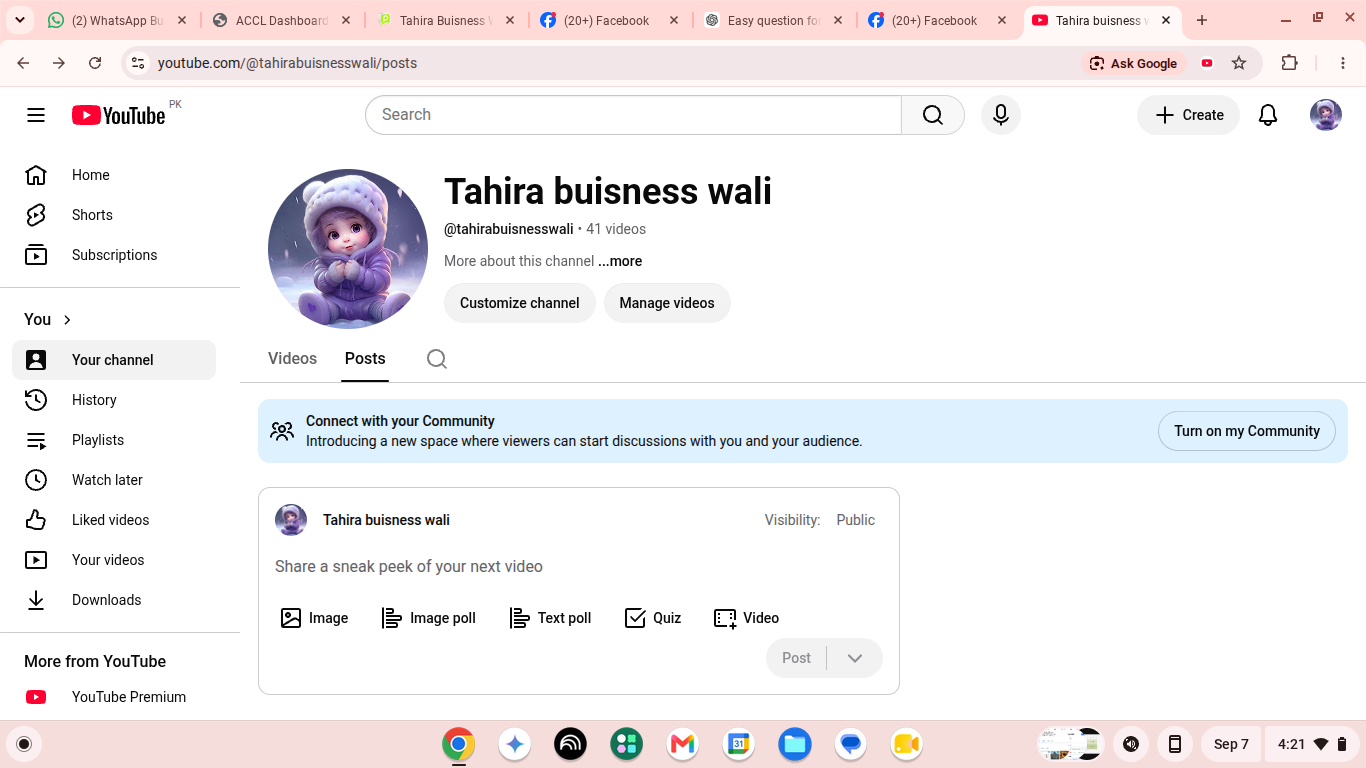
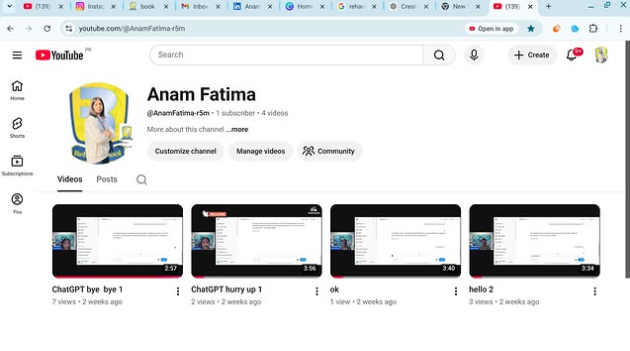
Today, I completed a task to create a YouTube channel. First, I visited YouTube and signed in with my Google account. Then, I clicked on my profile icon and selected **“Create a Channel.”**
After creating the channel, I added a profile picture, banner, and channel description. I also uploaded my first video and learned how to choose the correct privacy settings.
This task helped me learn the basic steps of creating and setting up a YouTube channel. It was a simple and useful learning experience that improved my digital skills.#RSTA #Task : Account Creation #Class: Foundation Level #Day No: 4 #Made By Me Total Post:4 Today, I completed a task to create a YouTube channel. First, I visited YouTube and signed in with my Google account. Then, I clicked on my profile icon and selected **“Create a Channel.”** After creating the channel, I added a profile picture, banner, and channel description. I also uploaded my first video and learned how to choose the correct privacy settings. This task helped me learn the basic steps of creating and setting up a YouTube channel. It was a simple and useful learning experience that improved my digital skills. π₯0 Comments 0 Shares 87 Views - RSIF8
Roll NO:11
Task post no : 1
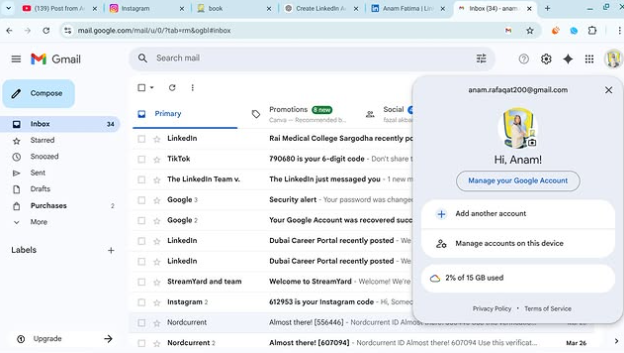
Task topic How to Create a Gmail
Account?
How to Create a Gmail Account – Step by Step Guide
Want your own email for school, work, or social media? Creating a Gmail account is super easy and FREE! Follow these simple steps and get started in minutes
Step 1: Go to the Gmail sign-up page
Step 2: Enter your First & Last Name
Step 3: Choose a unique Username
Step 4: Create a strong Password
Step 5: Add your Phone Number for security
Step 6: Verify with the code sent to your phone
Step 7: Add recovery email (optional)
Step 8: Enter your birthday & gender
Step 9: Agree to Google’s terms
Done! Your Gmail is ready to use!
Now you can send emails , join YouTube , download apps , and use Google Drive
Tip: Keep your password safe and never share it
#Gmail #EmailAccount #GoogleAccount #TechTips #DigitalSkills #LearnOnline #Students #Beginners #HowTo #EasyStepsRSIF8 Roll NO:11 Task post no : 1 Task topic How to Create a Gmail Account? β¨ How to Create a Gmail Account – Step by Step Guide β¨ Want your own email for school, work, or social media? π±π» Creating a Gmail account is super easy and FREE! π― Follow these simple steps and get started in minutes π πΉ Step 1: Go to the Gmail sign-up page π πΉ Step 2: Enter your First & Last Name π€ πΉ Step 3: Choose a unique Username βοΈ πΉ Step 4: Create a strong Password π πΉ Step 5: Add your Phone Number for security π πΉ Step 6: Verify with the code sent to your phone βοΈ πΉ Step 7: Add recovery email (optional) π© πΉ Step 8: Enter your birthday & gender π πΉ Step 9: Agree to Google’s terms π π Done! Your Gmail is ready to use! π Now you can send emails π§, join YouTube βΆοΈ, download apps π², and use Google Drive βοΈ π‘ Tip: Keep your password safe and never share it π #Gmail #EmailAccount #GoogleAccount #TechTips #DigitalSkills #LearnOnline #Students #Beginners #HowTo #EasySteps π0 Comments 0 Shares 229 Views - RSIF8
Roll NO:11
Task post no : 4
Task topic How to Create a YouTube
Account?
Start Your YouTube Journey Today!
Ready to become a YouTuber? Your voice, your ideas, your talent — the world is waiting! Creating a YouTube account takes just a few minutes
Follow these quick steps:
Open YouTube app or website
Tap Sign In
Login with your Gmail account
Click your profile icon
Choose Create a Channel
Enter your channel name
Add profile photo & description
Hit Create and you’re LIVE!
Boom! You’re officially a YouTube Creator
Now start uploading videos
Grow your audience
Share knowledge & fun
Turn your passion into success
Remember: Every big YouTuber started with their first video
#NewYouTuber #StartYourChannel #YouTubeTips #ContentCreation #BeCreative #DigitalCreator #SocialMediaGrowth #DreamBig #CreatorLifeRSIF8 Roll NO:11 Task post no : 4 Task topic How to Create a YouTube Account? π Start Your YouTube Journey Today! Ready to become a YouTuber? π Your voice, your ideas, your talent — the world is waiting! π Creating a YouTube account takes just a few minutes β° π Follow these quick steps: 1οΈβ£ Open YouTube app or website π±π» 2οΈβ£ Tap Sign In π 3οΈβ£ Login with your Gmail account π§ 4οΈβ£ Click your profile icon π€ 5οΈβ£ Choose Create a Channel π₯ 6οΈβ£ Enter your channel name βοΈ 7οΈβ£ Add profile photo & description πΌοΈ 8οΈβ£ Hit Create and you’re LIVE! π΄ π Boom! You’re officially a YouTube Creator π Now start uploading videos πΉ Grow your audience π₯ Share knowledge & fun π€© Turn your passion into success π°β¨ π‘ Remember: Every big YouTuber started with their first video πͺ #NewYouTuber #StartYourChannel #YouTubeTips #ContentCreation #BeCreative #DigitalCreator #SocialMediaGrowth #DreamBig #CreatorLife ππ₯π₯0 Comments 0 Shares 518 Views - RSIF8
Roll NO:11
Task post no : 5
Task topic How to Create an Instagram
Account?
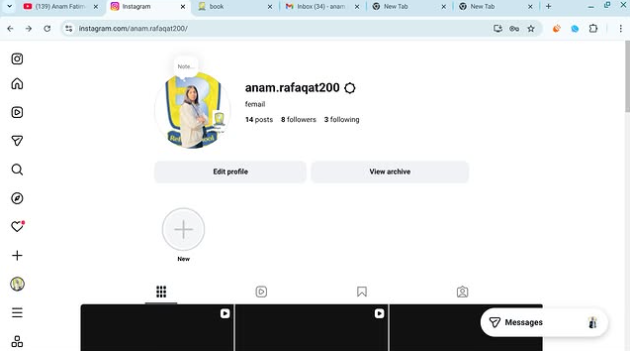
How to Create an Instagram Account (Step-by-Step Guide)
Want to join the world of reels, photos, and creativity? Let’s make your Instagram account in just a few minutes!
Step 1: Download the App
Open Play Store (Android) or App Store (iPhone)
Search for Instagram
Tap Install / Get
Step 2: Open & Sign Up
Open the app
Tap Sign Up
Choose one option:
Sign up with Email
Sign up with Phone Number
Step 3: Create Login Details
Enter your name
Create a username (your unique ID)
Create a strong password
Tip: Pick a cool username like:
anam_creates
life.with.anam
official.anam
Step 4: Add Profile Info
Now make your profile attractive
Add a Profile Photo
Write a Bio (short intro)
Example bio ideas:
Dream big | Work hard | Stay kind
Student | Creator | Learner
Living my story one post at a time
Step 5: Find Friends
Instagram will ask to connect contacts
Tap Follow to start building your community
Step 6: Your Account is Ready!
Congratulations You are now on Instagram!
Post your first photo:
Tap + icon → Upload → Write caption → Post
Something Different (Fun First Post Idea)
Instead of a normal photo, make a “Hello Instagram” intro post
Caption idea:
Hello world!
This is my new space to share my journey, creativity and daily life
Follow me for positivity, learning & fun
#NewOnInstagram #FirstPost #HelloWorld #InstaJourney #DreamBigRSIF8RSIF8RSIF8 Roll NO:11 Task post no : 5 Task topic How to Create an Instagram Account? πΈβ¨ How to Create an Instagram Account (Step-by-Step Guide) ππ₯ Want to join the world of reels, photos, and creativity? Let’s make your Instagram account in just a few minutes! π₯π¬ π² Step 1: Download the App π Open Play Store (Android) or App Store (iPhone) π Search for Instagram β¬οΈ Tap Install / Get π Step 2: Open & Sign Up 1οΈβ£ Open the app 2οΈβ£ Tap Sign Up 3οΈβ£ Choose one option: π§ Sign up with Email π± Sign up with Phone Number π Step 3: Create Login Details βοΈ Enter your name βοΈ Create a username (your unique ID) π βοΈ Create a strong password π Tip: Pick a cool username like: β¨ anam_creates β¨ life.with.anam β¨ official.anam π€ Step 4: Add Profile Info Now make your profile attractive π π· Add a Profile Photo π Write a Bio (short intro) Example bio ideas: πΈ Dream big | Work hard | Stay kind π Student | πΈ Creator | π« Learner β¨ Living my story one post at a time π₯ Step 5: Find Friends Instagram will ask to connect contacts π± Tap Follow to start building your community π€π¬ π Step 6: Your Account is Ready! Congratulations π₯³ You are now on Instagram! Post your first photo: πΈ Tap + icon → Upload → Write caption → Post π π‘ Something Different (Fun First Post Idea) π Instead of a normal photo, make a “Hello Instagram” intro post π Caption idea: β¨ Hello world! This is my new space to share my journey, creativity and daily life π« Follow me for positivity, learning & fun πΈπ #NewOnInstagram #FirstPost #HelloWorld #InstaJourney #DreamBigRSIF8RSIF80 Comments 0 Shares 446 Views - **Batch 14**
**Task No. 16**
**Book ACCl**
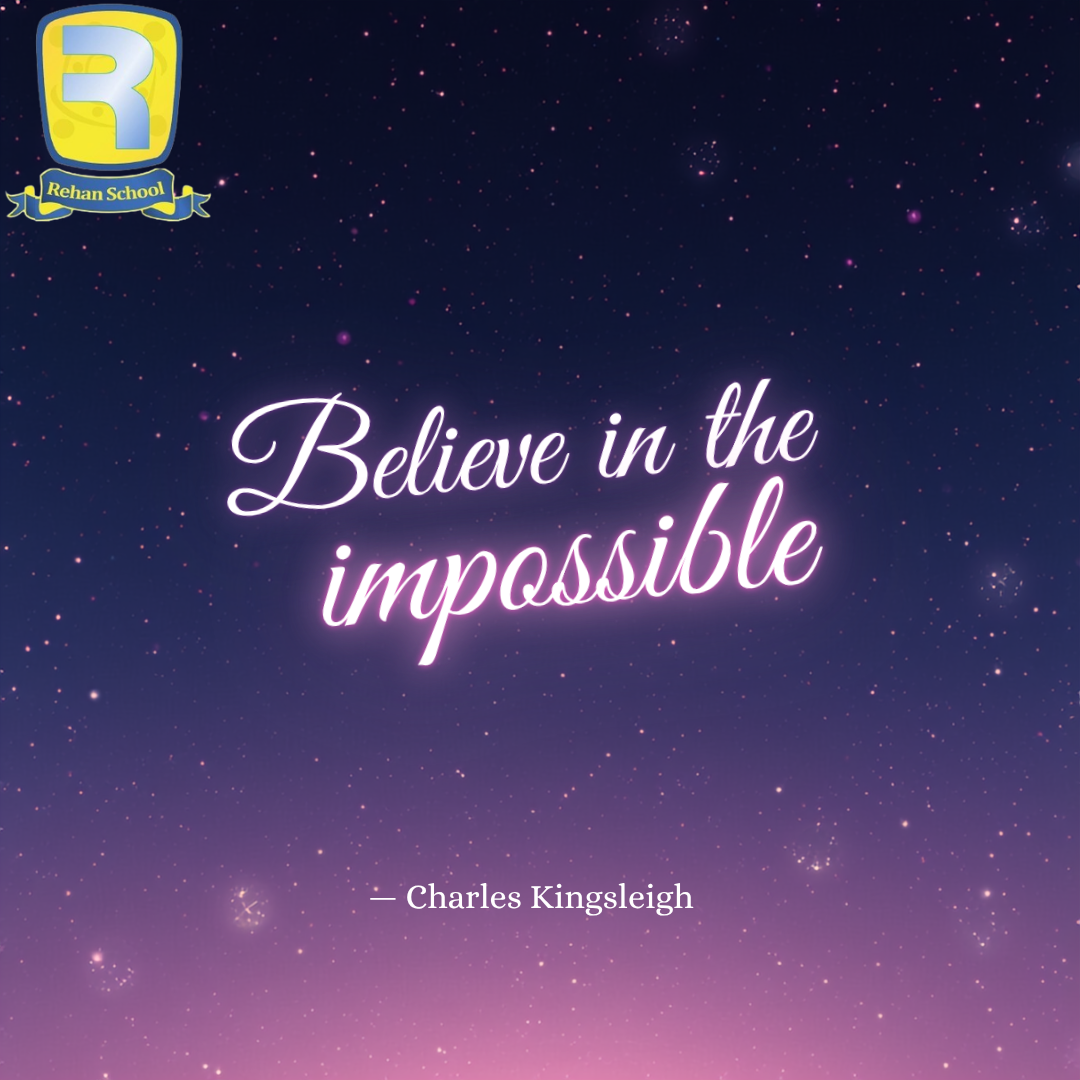
Today, I successfully completed my task based on the inspiring theme **“Believe in the Impossible” — Charles Kingsleigh**. This task encouraged me to think beyond limitations, embrace creativity, and develop a positive mindset toward achieving challenging goals. It was a valuable experience that strengthened my confidence, creativity, and ability to turn inspiring ideas into meaningful content.
#TaskCompleted #BelieveInTheImpossible #CharlesKingsleigh #Creativity #PositiveMindset #SelfConfidence #ContentCreation #Learning
**Batch 14** **Task No. 16** **Book ACCl** Today, I successfully completed my task based on the inspiring theme **“Believe in the Impossible” — Charles Kingsleigh**. This task encouraged me to think beyond limitations, embrace creativity, and develop a positive mindset toward achieving challenging goals. It was a valuable experience that strengthened my confidence, creativity, and ability to turn inspiring ideas into meaningful content. #TaskCompleted #BelieveInTheImpossible #CharlesKingsleigh #Creativity #PositiveMindset #SelfConfidence #ContentCreation #Learning0 Comments 0 Shares 62 Views -
-