
RSIF8
Roll NO:11
Task post no : 7
Task topic How to Download and Use
Canva?
How to Download & Use Canva (Easy Guide)
Want to design posters, logos, videos, and social posts like a pro? Let’s learn how to download and use Canva step-by-step!
Step 1: Download Canva
On Mobile
Open Play Store or App Store
Search Canva
Tap Install
On Laptop
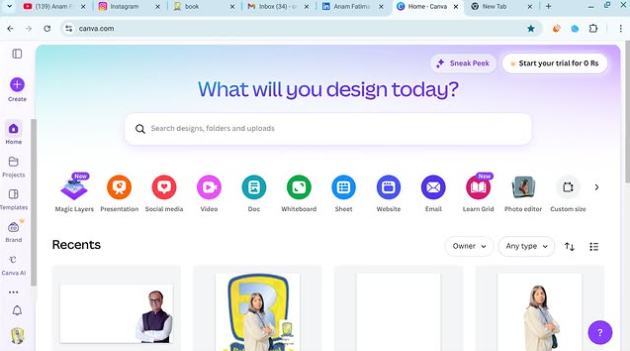
Go to www.canva.com
Sign up and use it directly (no download needed)
Step 2: Create Account
Sign up using:
Gmail
Facebook
Email
Click Sign up → You’re in
Step 3: Start Your First Design
Tap Create a design
Choose what you want:
Instagram Post
Presentation
Poster
Logo
Step 4: Edit Like Magic
You can easily:
Add text
Insert photos
Change colors
Add stickers & icons
Just drag and drop
Step 5: Download Your Design
Click Share ➜ Download
Choose format:
PNG
JPG
PDF
MP4
Congrats! You’re ready to design anything like a pro
Want me to give you Canva ideas for posts?
Roll NO:11
Task post no : 7
Task topic How to Download and Use
Canva?
How to Download & Use Canva (Easy Guide)
Want to design posters, logos, videos, and social posts like a pro? Let’s learn how to download and use Canva step-by-step!
Step 1: Download Canva
On Mobile
Open Play Store or App Store
Search Canva
Tap Install
On Laptop
Go to www.canva.com
Sign up and use it directly (no download needed)
Step 2: Create Account
Sign up using:
Gmail
Click Sign up → You’re in
Step 3: Start Your First Design
Tap Create a design
Choose what you want:
Instagram Post
Presentation
Poster
Logo
Step 4: Edit Like Magic
You can easily:
Add text
Insert photos
Change colors
Add stickers & icons
Just drag and drop
Step 5: Download Your Design
Click Share ➜ Download
Choose format:
PNG
JPG
MP4
Congrats! You’re ready to design anything like a pro
Want me to give you Canva ideas for posts?
RSIF8
Roll NO:11
Task post no : 7
Task topic How to Download and Use
Canva?
🎨✨ How to Download & Use Canva (Easy Guide) 🚀📱💻
Want to design posters, logos, videos, and social posts like a pro? 😍 Let’s learn how to download and use Canva step-by-step!
📥 Step 1: Download Canva
On Mobile 📱
Open Play Store or App Store 🛍️
Search Canva 🔎
Tap Install ⬇️
On Laptop 💻
Go to 👉 www.canva.com
🌐
Sign up and use it directly (no download needed)
📝 Step 2: Create Account
Sign up using:
Gmail 📧
Facebook 👍
Email ✉️
Click Sign up → You’re in 🎉
🎨 Step 3: Start Your First Design
Tap Create a design ➕
Choose what you want:
Instagram Post 📸
Presentation 📊
Poster 🪧
Logo 🔥
🖌️ Step 4: Edit Like Magic
You can easily:
Add text ✍️
Insert photos 🖼️
Change colors 🌈
Add stickers & icons 😍
Just drag and drop 👆
💾 Step 5: Download Your Design
Click Share ➜ Download ⬇️
Choose format:
PNG 🖼️
JPG 📷
PDF 📄
MP4 🎬
🎉 Congrats! You’re ready to design anything like a pro 🌟💡
Want me to give you Canva ideas for posts? 😄
0 Comments
0 Shares
22 Views