
RSIF8
Roll NO:11
Task post no : 9
Task topic How to use streamyard for interviews?
How to Use StreamYard for Interviews
Want to host online interviews like a pro? StreamYard lets you go live on YouTube, Facebook, or record professional interviews directly from your browser
Step 1 — Open StreamYard
Start here
Open StreamYard Studio
Sign up with Google / Facebook / Email
Allow camera & microphone
You are now ready to create your studio
Step 2 — Create Your Interview Studio
Click Create a Broadcast
Choose platform (YouTube / Facebook / Record Only )
Enter interview title
Enter the studio
Boom Your virtual interview room is ready!
Step 3 — Invite Your Guest
This is the magic part
Click Invite Guests
Copy the invite link
Send it to your guest on WhatsApp or Email
Your guest joins with one click
Step 4 — Start the Interview
When your guest joins
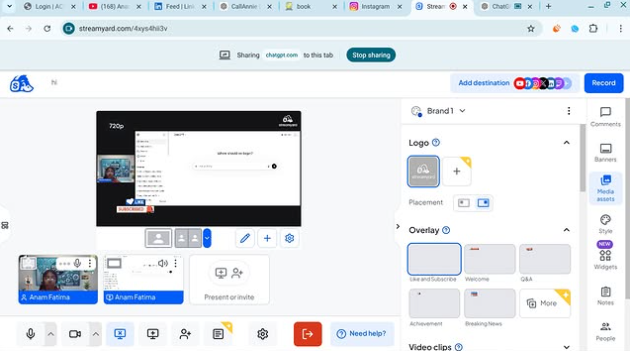
Add them to screen
Choose layout (side-by-side / full screen)
Add name banners
Click Go Live or Record
You are now LIVE like a real TV show
Pro Interview Features
Show comments on screen
Add logo & background
Share screen for slides
Play intro music
Download recording after interview
Interview Tips for Success
Test mic & camera before going live
Smile and look at camera
Keep questions ready
Keep interview 5–15 minutes
Now you can host professional online interviews from home like a real presenter!
Roll NO:11
Task post no : 9
Task topic How to use streamyard for interviews?
How to Use StreamYard for Interviews
Want to host online interviews like a pro? StreamYard lets you go live on YouTube, Facebook, or record professional interviews directly from your browser
Step 1 — Open StreamYard
Start here
Open StreamYard Studio
Sign up with Google / Facebook / Email
Allow camera & microphone
You are now ready to create your studio
Step 2 — Create Your Interview Studio
Click Create a Broadcast
Choose platform (YouTube / Facebook / Record Only )
Enter interview title
Enter the studio
Boom Your virtual interview room is ready!
Step 3 — Invite Your Guest
This is the magic part
Click Invite Guests
Copy the invite link
Send it to your guest on WhatsApp or Email
Your guest joins with one click
Step 4 — Start the Interview
When your guest joins
Add them to screen
Choose layout (side-by-side / full screen)
Add name banners
Click Go Live or Record
You are now LIVE like a real TV show
Pro Interview Features
Show comments on screen
Add logo & background
Share screen for slides
Play intro music
Download recording after interview
Interview Tips for Success
Test mic & camera before going live
Smile and look at camera
Keep questions ready
Keep interview 5–15 minutes
Now you can host professional online interviews from home like a real presenter!
RSIF8
Roll NO:11
Task post no : 9
Task topic How to use streamyard for interviews?
🎤📺 How to Use StreamYard for Interviews 🤩🎙️💻
Want to host online interviews like a pro? StreamYard lets you go live on YouTube, Facebook, or record professional interviews directly from your browser 🚀🌍✨
⬇️🌐 Step 1 — Open StreamYard
Start here 👇
Open StreamYard Studio🚀
👉 Sign up with Google / Facebook / Email ✉️
👉 Allow camera 📷 & microphone 🎤
You are now ready to create your studio 🏢✨
🎬 Step 2 — Create Your Interview Studio
1️⃣ Click Create a Broadcast 🎥
2️⃣ Choose platform (YouTube ▶️ / Facebook 👍 / Record Only 🎬)
3️⃣ Enter interview title 📝
4️⃣ Enter the studio 💻
Boom 💥 Your virtual interview room is ready!
👩💻📩 Step 3 — Invite Your Guest
This is the magic part ✨
👉 Click Invite Guests 🔗
👉 Copy the invite link 📋
👉 Send it to your guest on WhatsApp or Email 📲✉️
Your guest joins with one click 😍
🎤🗣️ Step 4 — Start the Interview
When your guest joins 👇
✅ Add them to screen 👥
✅ Choose layout (side-by-side / full screen) 🖥️
✅ Add name banners 🏷️
✅ Click Go Live 🔴 or Record 🎬
You are now LIVE like a real TV show 📺🔥
✨🎯 Pro Interview Features
🌟 Show comments on screen 💬
🌟 Add logo & background 🖼️
🌟 Share screen for slides 📊
🌟 Play intro music 🎵
🌟 Download recording after interview 💾
💡🔥 Interview Tips for Success
🎯 Test mic & camera before going live
😊 Smile and look at camera
📋 Keep questions ready
⏰ Keep interview 5–15 minutes
🎉📺 Now you can host professional online interviews from home like a real presenter! 🎤🌍💥
0 Reacties
0 aandelen
30 Views