
DAY 9
parents ACCL COURSE
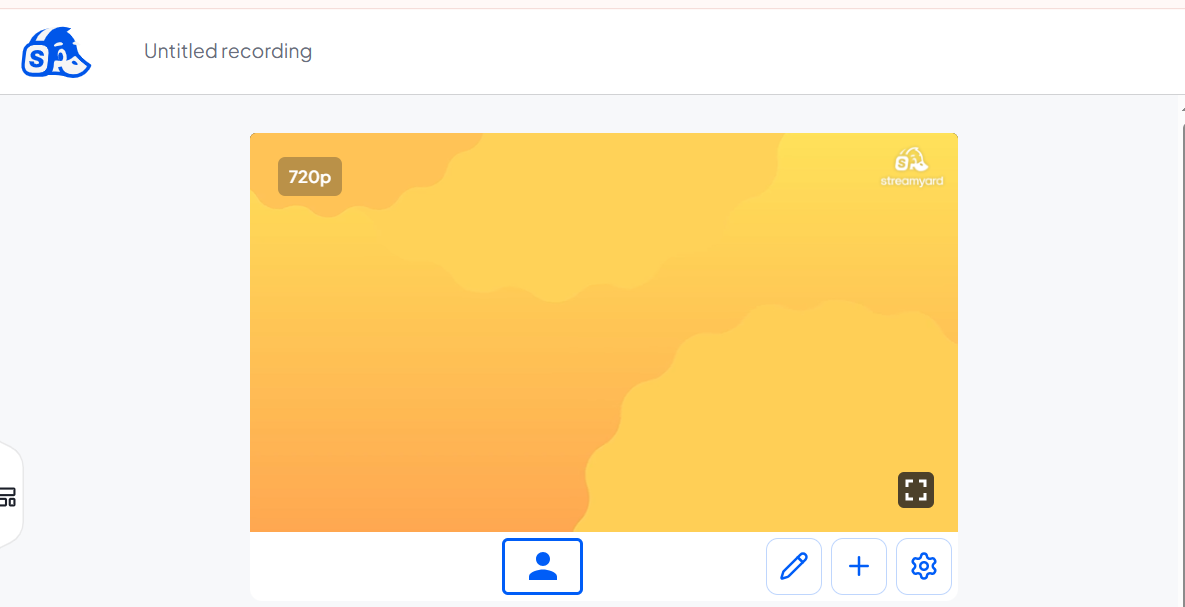
The image shows the StreamYard recording interface with an untitled recording project. At the top left is the StreamYard logo, followed by the title "Untitled recording." In the center of the page is a large video preview area displaying a yellow-to-orange gradient background with a "720p" label in the upper-left corner and the StreamYard watermark in the upper-right corner. At the bottom of the preview are controls, including a participant icon, an edit (pencil) button, a plus (+) button for adding content, and a settings (gear) icon. A fullscreen button appears in the bottom-right corner of the preview. The surrounding interface has a clean, light-gray layout with a partially visible vertical toolbar on the left side
parents ACCL COURSE
The image shows the StreamYard recording interface with an untitled recording project. At the top left is the StreamYard logo, followed by the title "Untitled recording." In the center of the page is a large video preview area displaying a yellow-to-orange gradient background with a "720p" label in the upper-left corner and the StreamYard watermark in the upper-right corner. At the bottom of the preview are controls, including a participant icon, an edit (pencil) button, a plus (+) button for adding content, and a settings (gear) icon. A fullscreen button appears in the bottom-right corner of the preview. The surrounding interface has a clean, light-gray layout with a partially visible vertical toolbar on the left side
DAY 9
parents ACCL COURSE
The image shows the StreamYard recording interface with an untitled recording project. At the top left is the StreamYard logo, followed by the title "Untitled recording." In the center of the page is a large video preview area displaying a yellow-to-orange gradient background with a "720p" label in the upper-left corner and the StreamYard watermark in the upper-right corner. At the bottom of the preview are controls, including a participant icon, an edit (pencil) button, a plus (+) button for adding content, and a settings (gear) icon. A fullscreen button appears in the bottom-right corner of the preview. The surrounding interface has a clean, light-gray layout with a partially visible vertical toolbar on the left side
0 Комментарии
0 Поделились
852 Просмотры