RSIF8
Roll no.29
Task no.7
Task Topic: How To download and use Canva
**Step 1: Download or Access Canva**
* **On Mobile (iPhone/Android) & iPad:** Open the App Store or Google Play Store, search for **Canva**, and tap download.
* **On Desktop (Mac/Windows):** You can download the official Canva desktop app from their website, or simply use it directly in your web browser at [canva.com](https://www.canva.com) without downloading anything.
**Step 2: Sign Up / Log In**
* Open Canva and create a free account using your Google account, Facebook, Apple ID, or email.
**Step 3: Create Your First Design**
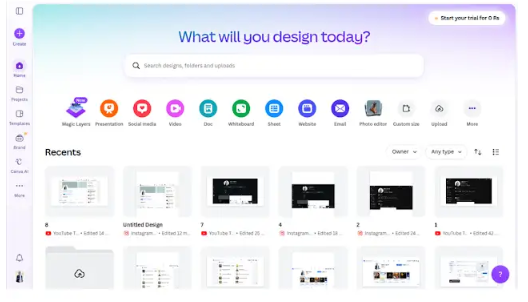
* Tap the **"+" button** or use the search bar to choose what you want to make (e.g., "Instagram Post", "Flyer", "Resume").
* Pick a professional, pre-made template or start with a blank canvas.
**Step 4: Customize & Export**
* Tap on text to change it, swap out images, tweak colors, or add stickers.
* Once you are happy with your creation, tap the **Share/Download button** (usually an arrow icon in the top right corner) to save it to your device as a PNG, JPG, or PDF
#Canva #GraphicDesign #ContentCreator #DesignMadeEasy #CreativityUnleashed #DIYDesign #SocialMediaMarketing #CanvaLove #SmallBusinessTools
Roll no.29
Task no.7
Task Topic: How To download and use Canva
**Step 1: Download or Access Canva**
* **On Mobile (iPhone/Android) & iPad:** Open the App Store or Google Play Store, search for **Canva**, and tap download.
* **On Desktop (Mac/Windows):** You can download the official Canva desktop app from their website, or simply use it directly in your web browser at [canva.com](https://www.canva.com) without downloading anything.
**Step 2: Sign Up / Log In**
* Open Canva and create a free account using your Google account, Facebook, Apple ID, or email.
**Step 3: Create Your First Design**
* Tap the **"+" button** or use the search bar to choose what you want to make (e.g., "Instagram Post", "Flyer", "Resume").
* Pick a professional, pre-made template or start with a blank canvas.
**Step 4: Customize & Export**
* Tap on text to change it, swap out images, tweak colors, or add stickers.
* Once you are happy with your creation, tap the **Share/Download button** (usually an arrow icon in the top right corner) to save it to your device as a PNG, JPG, or PDF
#Canva #GraphicDesign #ContentCreator #DesignMadeEasy #CreativityUnleashed #DIYDesign #SocialMediaMarketing #CanvaLove #SmallBusinessTools
RSIF8
Roll no.29
Task no.7
Task Topic: How To download and use Canva
**Step 1: Download or Access Canva**
* **On Mobile (iPhone/Android) & iPad:** Open the App Store or Google Play Store, search for **Canva**, and tap download.
* **On Desktop (Mac/Windows):** You can download the official Canva desktop app from their website, or simply use it directly in your web browser at [canva.com](https://www.canva.com) without downloading anything.
**Step 2: Sign Up / Log In**
* Open Canva and create a free account using your Google account, Facebook, Apple ID, or email.
**Step 3: Create Your First Design**
* Tap the **"+" button** or use the search bar to choose what you want to make (e.g., "Instagram Post", "Flyer", "Resume").
* Pick a professional, pre-made template or start with a blank canvas.
**Step 4: Customize & Export**
* Tap on text to change it, swap out images, tweak colors, or add stickers.
* Once you are happy with your creation, tap the **Share/Download button** (usually an arrow icon in the top right corner) to save it to your device as a PNG, JPG, or PDF
#Canva #GraphicDesign #ContentCreator #DesignMadeEasy #CreativityUnleashed #DIYDesign #SocialMediaMarketing #CanvaLove #SmallBusinessTools
0 Comments
0 Shares
340 Views