#rsisb
Roll No.269
Foundation Level
Account Creation
**How to Download and Use Canva? | Complete Canva Tutorial for Beginners**
Assalamualaikum everyone!
My name is **Syed Hasan**, and I am a Foundation Level student at **Rehan School, Islamabad Campus**.
In this video, I am going to explain **How to Download and Use Canva** in a simple, easy, and beginner-friendly way.
Canva is one of the most useful and easy-to-learn design platforms for students, teachers, content creators, and anyone who wants to create beautiful digital designs without needing advanced graphic-design skills.
With Canva, you can create presentations, posters, YouTube thumbnails, social media posts, invitations, certificates, videos, logos, school projects, and many other creative designs.
In this video, I will guide you through the basic steps of getting started with Canva. First, we will learn **what Canva is and why it is useful**. Then, I will explain how to open Canva and how to create or log into your Canva account.
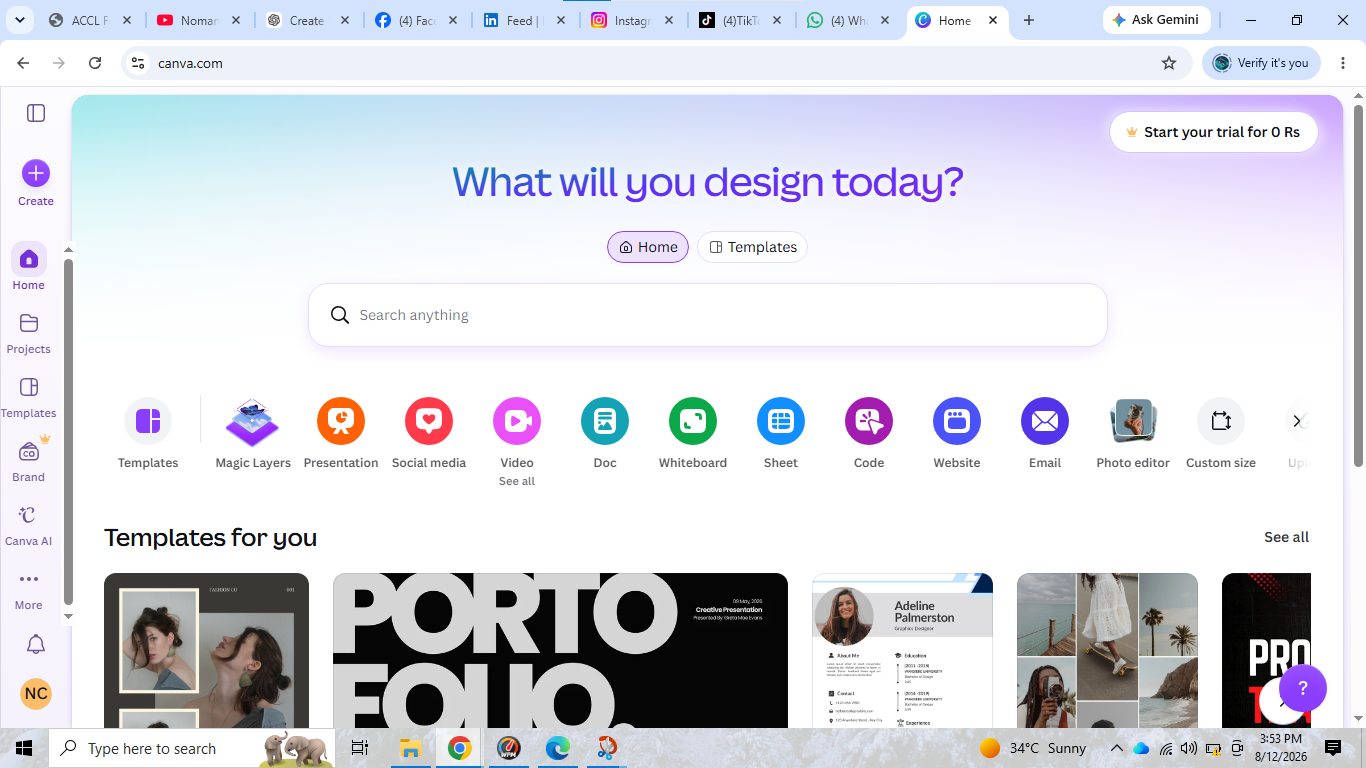
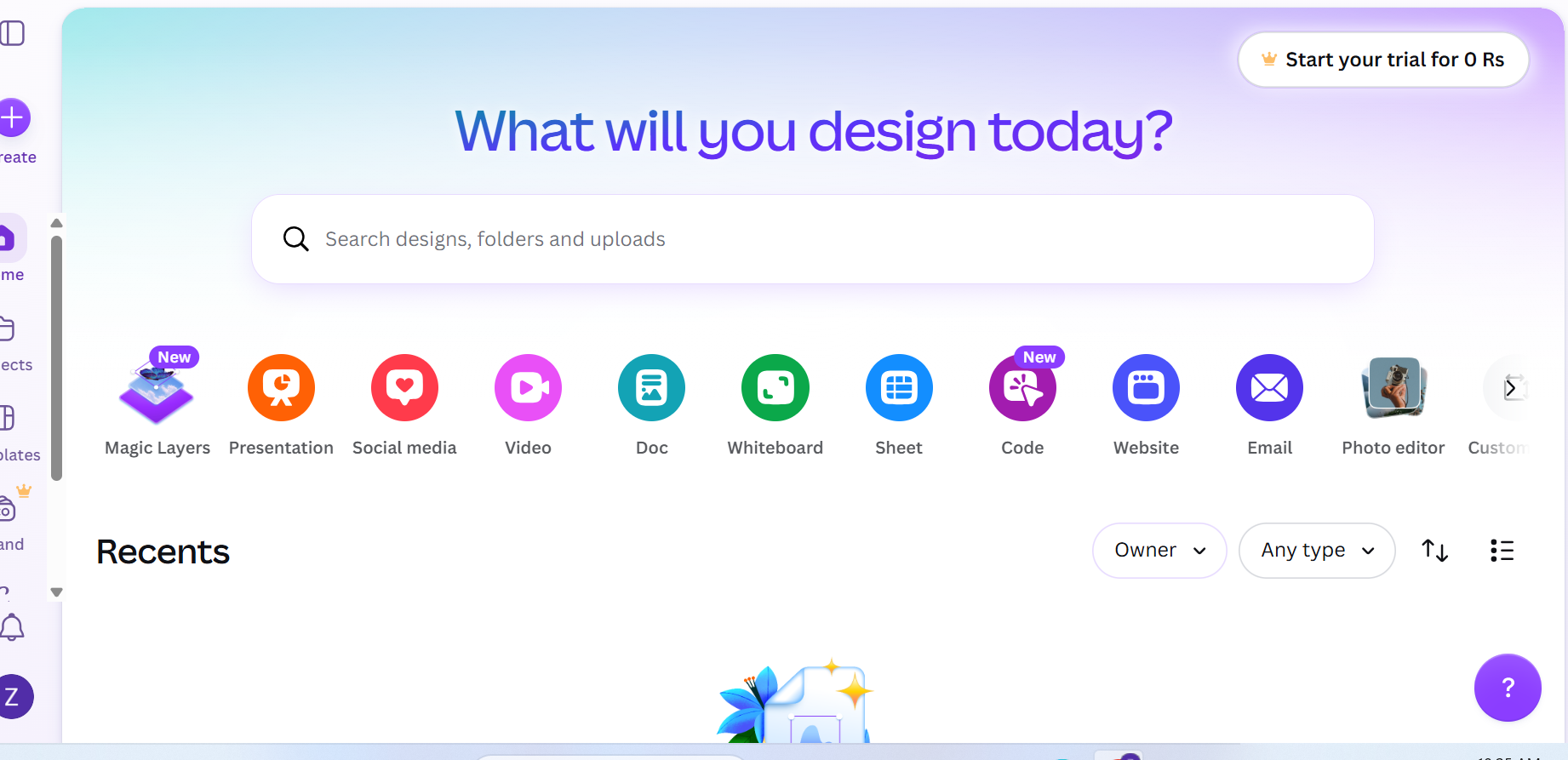
After that, we will explore the Canva home screen and learn how to find different design templates.
Templates can make designing much easier because you can start with an existing layout and customize it according to your own needs.
You will also learn how to **choose a template, add and edit text, change fonts, change colors, add pictures, use shapes and elements, upload your own images, and arrange different objects on the page**.
Canva gives you many creative tools that allow you to make your designs look attractive and professional.
I will also explain how you can create designs for different purposes. For example, students can use Canva for **school presentations, project covers, posters, educational charts, certificates, and assignments**.
Content creators can use Canva for **YouTube thumbnails, video graphics, social media posts, banners, and other online content**.
Another important part of Canva is learning how to save and download your work.
In this tutorial, I will show you how to use the **Share and Download** options and how to select a suitable file format, such as PNG, JPG, or PDF, depending on the type of design you are creating.
**What You Will Learn in This Video:**
What is Canva?
Why Canva is useful
How to open Canva
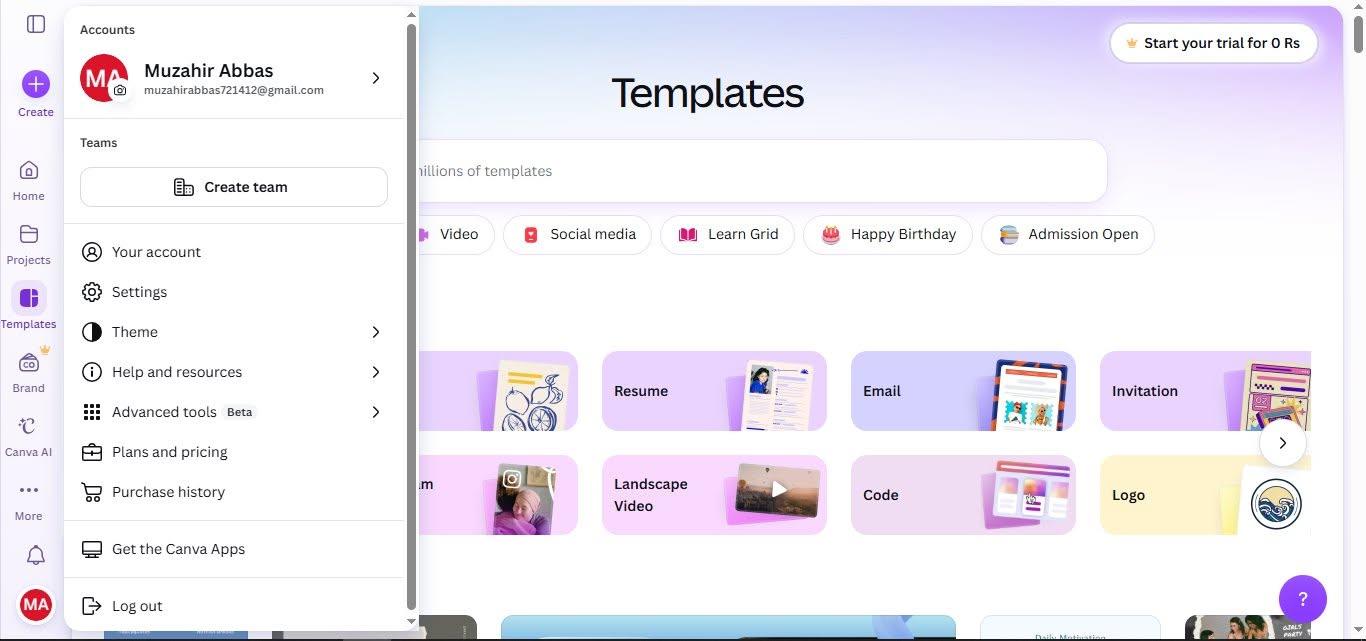
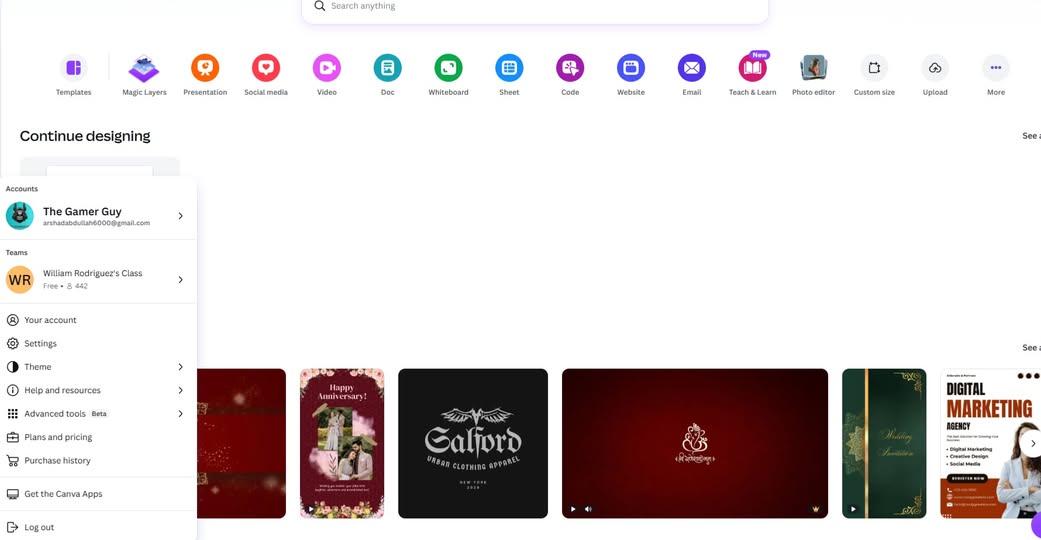
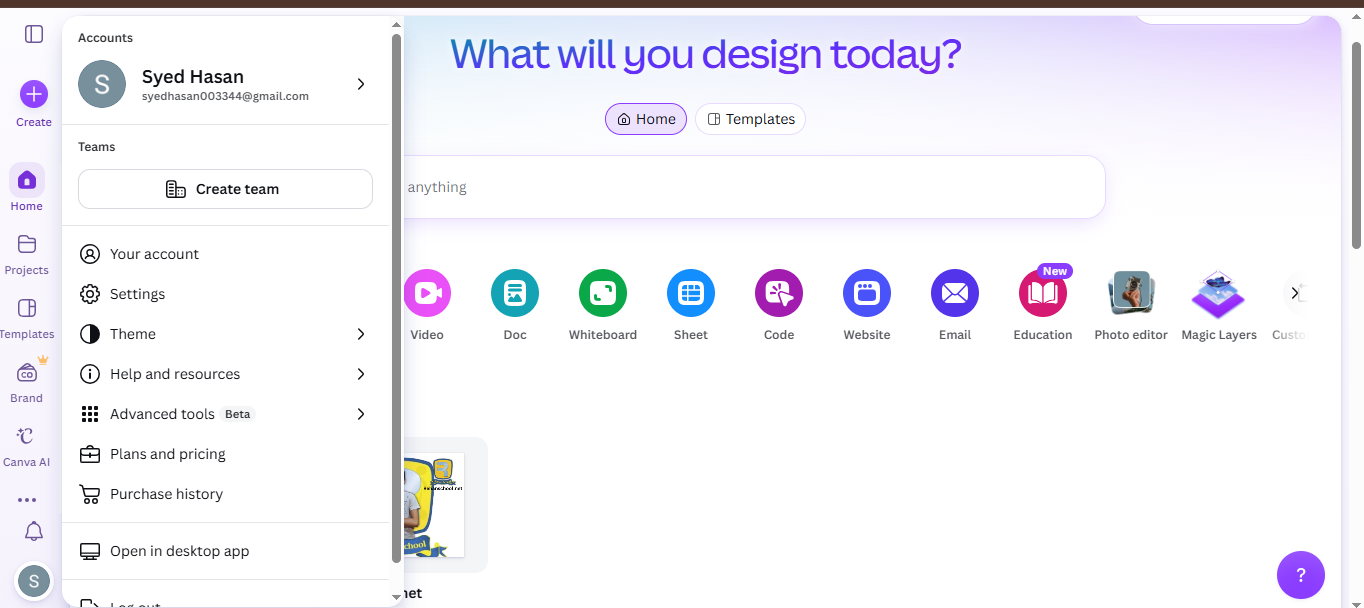
How to create a Canva account
How to log in to Canva
How to understand the Canva homepage
How to search for templates
How to select a design template
How to add and edit text
How to change fonts and text size
How to change colors
How to add pictures and images
How to upload your own pictures
How to add shapes and design elements
How to create presentations
How to make posters
How to create YouTube thumbnails
How to create social media designs
How to edit your designs
How to save your Canva project
How to download your finished design
Basic Canva tips for beginners
Canva is a great platform for developing **creativity, digital skills, communication skills, and design skills**.
Learning Canva can also help students create better presentations and make their school projects more interesting and visually appealing.
If you are completely new to Canva, don't worry!
This video is designed to explain the basic features step by step so that beginners can follow along easily. By the end of the video, you should have a better understanding of how Canva works and how you can start creating your own designs.
I hope you enjoy this tutorial and learn something useful from it!
If you find this video helpful, please **LIKE
, SHARE
, and SUBSCRIBE
** to support me and my learning journey.
Thank you so much for watching!
Keep learning
, keep creating
, and keep improving every day!
#Canva #CanvaTutorial #HowToUseCanva #CanvaForBeginners #HowToDownloadCanva #LearnCanva #CanvaDesign #GraphicDesign #DesignTutorial #DigitalSkills #GraphicDesignForBeginners #CanvaTips #CanvaTemplates #YouTubeThumbnail #ThumbnailDesign #PresentationDesign #PosterDesign #SchoolProjects #StudentProjects #CreativeDesign #ContentCreation #SocialMediaDesign #DigitalDesign #Education #Technology #Learning #BeginnersGuide #OnlineLearning #CreativeSkills #rsisb
Roll No.269
Foundation Level
Account Creation
🎨 **How to Download and Use Canva? | Complete Canva Tutorial for Beginners** 💻✨
Assalamualaikum everyone! 👋
My name is **Syed Hasan**, and I am a Foundation Level student at **Rehan School, Islamabad Campus**. 🎓 In this video, I am going to explain **How to Download and Use Canva** in a simple, easy, and beginner-friendly way. 🚀
Canva is one of the most useful and easy-to-learn design platforms for students, teachers, content creators, and anyone who wants to create beautiful digital designs without needing advanced graphic-design skills. 🎨💻 With Canva, you can create presentations, posters, YouTube thumbnails, social media posts, invitations, certificates, videos, logos, school projects, and many other creative designs. 🌟📚
In this video, I will guide you through the basic steps of getting started with Canva. First, we will learn **what Canva is and why it is useful**. Then, I will explain how to open Canva and how to create or log into your Canva account. 🔐
After that, we will explore the Canva home screen and learn how to find different design templates. 🖥️✨ Templates can make designing much easier because you can start with an existing layout and customize it according to your own needs.
You will also learn how to **choose a template, add and edit text, change fonts, change colors, add pictures, use shapes and elements, upload your own images, and arrange different objects on the page**. 📝🖼️🔤 Canva gives you many creative tools that allow you to make your designs look attractive and professional.
I will also explain how you can create designs for different purposes. For example, students can use Canva for **school presentations, project covers, posters, educational charts, certificates, and assignments**. 🎓📖 Content creators can use Canva for **YouTube thumbnails, video graphics, social media posts, banners, and other online content**. 🎥📱
Another important part of Canva is learning how to save and download your work. 📥 In this tutorial, I will show you how to use the **Share and Download** options and how to select a suitable file format, such as PNG, JPG, or PDF, depending on the type of design you are creating.
💡 **What You Will Learn in This Video:**
✅ What is Canva?
✅ Why Canva is useful
✅ How to open Canva
✅ How to create a Canva account
✅ How to log in to Canva
✅ How to understand the Canva homepage
✅ How to search for templates
✅ How to select a design template
✅ How to add and edit text
✅ How to change fonts and text size
✅ How to change colors
✅ How to add pictures and images
✅ How to upload your own pictures
✅ How to add shapes and design elements
✅ How to create presentations
✅ How to make posters
✅ How to create YouTube thumbnails
✅ How to create social media designs
✅ How to edit your designs
✅ How to save your Canva project
✅ How to download your finished design
✅ Basic Canva tips for beginners 🎨✨
Canva is a great platform for developing **creativity, digital skills, communication skills, and design skills**. 🌟 Learning Canva can also help students create better presentations and make their school projects more interesting and visually appealing.
If you are completely new to Canva, don't worry! 😊 This video is designed to explain the basic features step by step so that beginners can follow along easily. By the end of the video, you should have a better understanding of how Canva works and how you can start creating your own designs.
I hope you enjoy this tutorial and learn something useful from it! ❤️ If you find this video helpful, please **LIKE 👍, SHARE 📤, and SUBSCRIBE 🔔** to support me and my learning journey.
Thank you so much for watching! 🙏✨
Keep learning 📚, keep creating 🎨, and keep improving every day! 🚀💻
#Canva #CanvaTutorial #HowToUseCanva #CanvaForBeginners #HowToDownloadCanva #LearnCanva #CanvaDesign #GraphicDesign #DesignTutorial #DigitalSkills #GraphicDesignForBeginners #CanvaTips #CanvaTemplates #YouTubeThumbnail #ThumbnailDesign #PresentationDesign #PosterDesign #SchoolProjects #StudentProjects #CreativeDesign #ContentCreation #SocialMediaDesign #DigitalDesign #Education #Technology #Learning #BeginnersGuide #OnlineLearning #CreativeSkills 🎨💻📚✨