• Accl Portal
    Day 4
    Week #1
    Book #1
    Task #4
    How to create a youtube account
    Go to www.youtube.com → Click Sign In
    Log in with Google account (or create one)
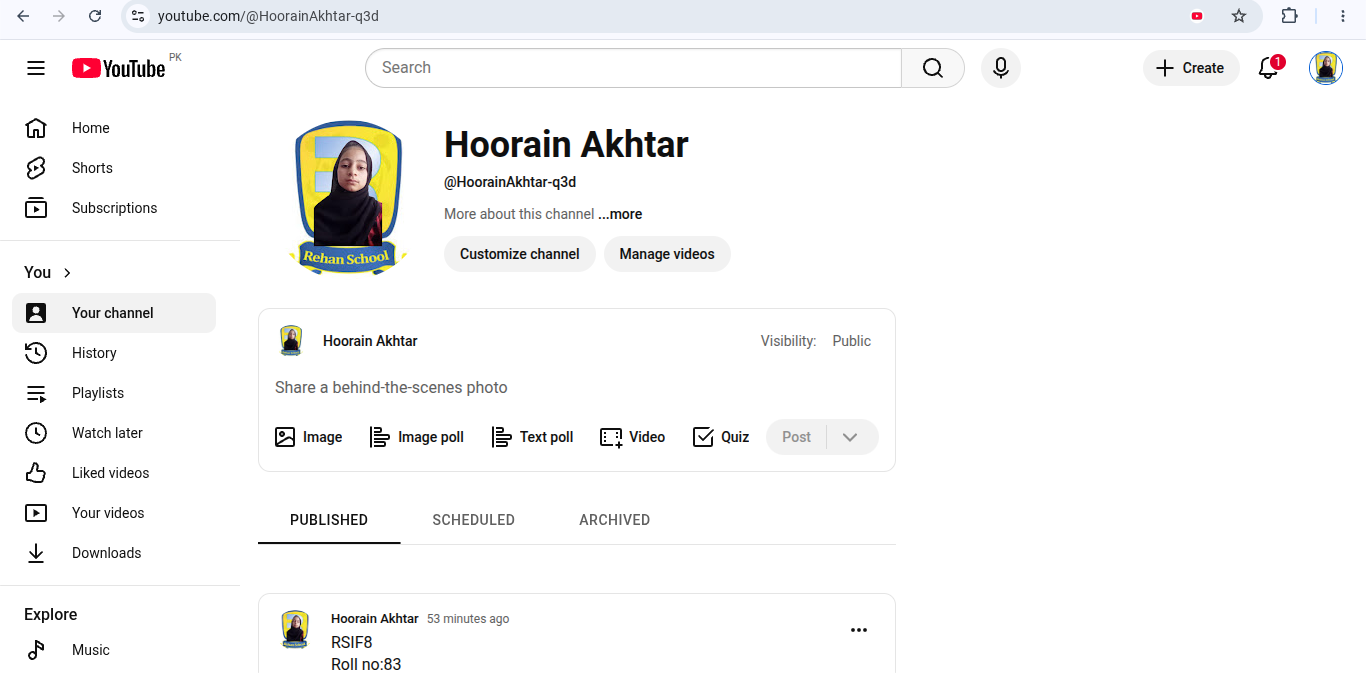
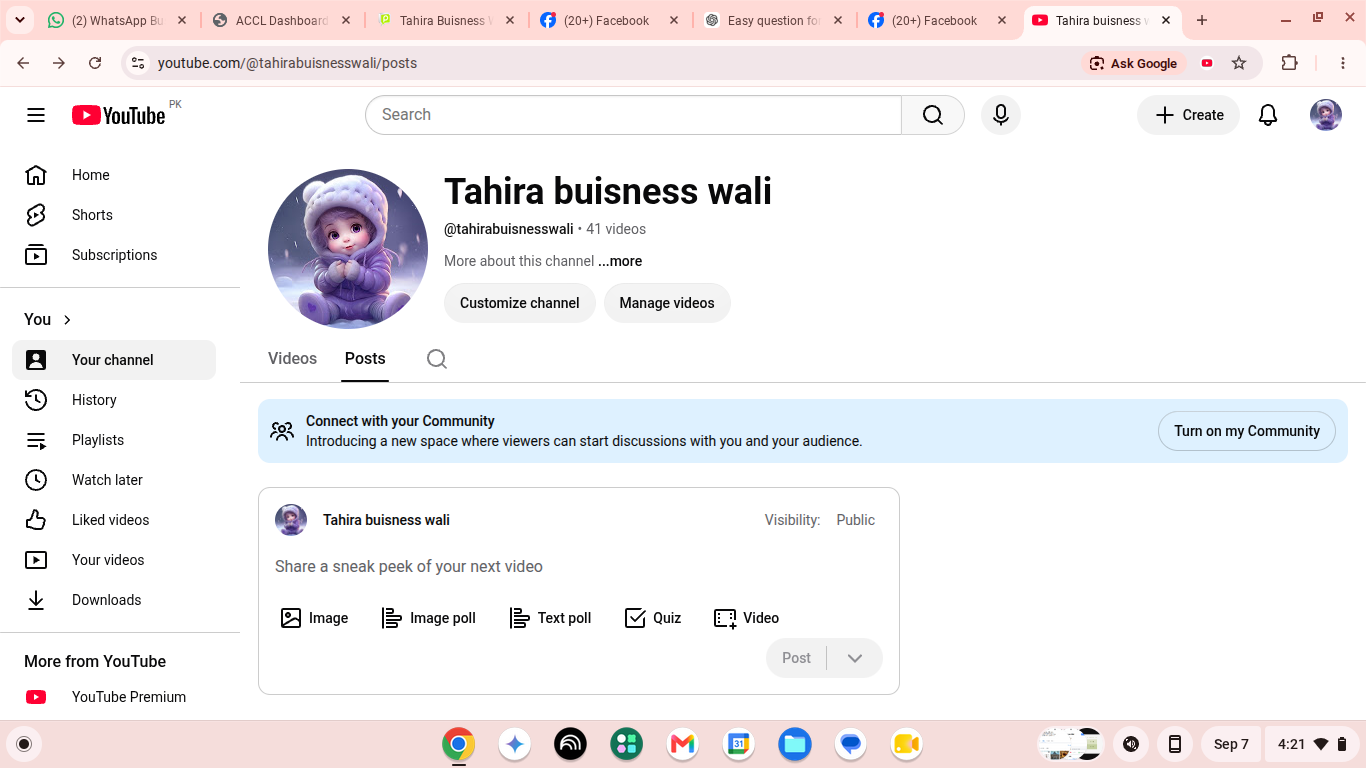
    Click profile icon → Create a Channel
    Add profile picture, banner, description
    Upload first video and set privacy options
    Submit your YouTube channel link (e.g., https://youtube.com/@yourchannel)
    Accl Portal Day 4 Week #1 Book #1 Task #4 How to create a youtube account Go to www.youtube.com → Click Sign In Log in with Google account (or create one) Click profile icon → Create a Channel Add profile picture, banner, description Upload first video and set privacy options Submit your YouTube channel link (e.g., https://youtube.com/@yourchannel)
    0 Σχόλια 0 Μοιράστηκε 418 Views
  • RSIF8
    ROLLNO:13
    CLASS: FOUNDATION LEVEL
    CODING TASK NO:10

    Claude Reminders ek web-based reminder app hai jisme aap apne tasks ke liye reminders do tarah se set kar sakte hain: form bhar ke, ya bas aam zubaan mein likh ke aur Claude se kehla ke. App Claude.ai par published hai, is liye aap kisi bhi browser mein link khol kar isay use kar sakte hain. Ye phone, tablet aur computer, sab par theek se kaam karta hai.

    Claude ke Zariye Reminder Lagana

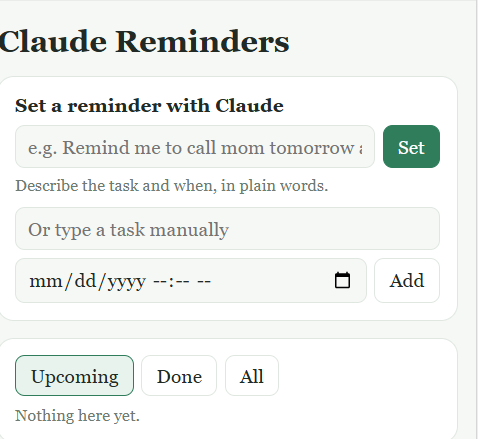
    Ye is app ki sab se khaas feature hai. “Set a reminder with Claude” wale box mein aap apni baat seedhi tarah se likhte hain, jaise:

    “Remind me to call mom tomorrow at 6pm”
    “Submit assignment on Friday at 11am”
    “Medicine lena hai raat 9 baje”
    “Pay electricity bill in three days”

    Set dabane par (ya Enter dabane par) app aap ka jumla Claude ko bhejti hai, saath mein abhi ki tareekh aur waqt bhi. Is wajah se “kal”, “parson”, “next Friday” ya “teen din baad” jaise alfaaz sahi tareeqe se samjhe jate hain. Claude jumle mein se saaf-suthra task aur ek exact tareekh aur waqt nikaal kar deta hai. Agar aap ne waqt nahi bataya to reminder subah 9:00 baje ka lag jata hai. Reminder list mein shamil ho jata hai aur ek confirmation message dikhta hai ke kya set hua. Agar Claude baat na samajh paye, ya bohot zyada requests ek saath ho jayen, to app saaf message dikhati hai aur dobara likhne ya manual form use karne ka mashwara deti hai. Pehli dafa istemal par Claude.ai aap se ijazat maangta hai.

    Manual Reminder

    Jab aap khud sab kuch tay karna chahein, to neeche “Or type a task manually” wala hissa hai. Isme task ka naam likhein, date/time picker se waqt chunein aur Add dabayein. Ye bohot tez hai aur is mein Claude ki zaroorat nahi parti.

    Reminder Aane Par Alert

    Jab kisi reminder ka waqt aa jata hai to page ke sab se upar ek numaya laal-sa banner nazar aata hai, jis par task ka naam aur ek Done button hota hai. Agar aap ne browser notifications ki ijazat di hai to ek notification bhi aati hai. App har 20 second mein khud check karti hai ke koi reminder due to nahi ho gaya. Ek se zyada reminders ek saath due hon to sab banner mein nazar aate hain.

    RSIF8 ROLLNO:13 CLASS: FOUNDATION LEVEL CODING TASK NO:10 Claude Reminders ek web-based reminder app hai jisme aap apne tasks ke liye reminders do tarah se set kar sakte hain: form bhar ke, ya bas aam zubaan mein likh ke aur Claude se kehla ke. App Claude.ai par published hai, is liye aap kisi bhi browser mein link khol kar isay use kar sakte hain. Ye phone, tablet aur computer, sab par theek se kaam karta hai. Claude ke Zariye Reminder Lagana Ye is app ki sab se khaas feature hai. “Set a reminder with Claude” wale box mein aap apni baat seedhi tarah se likhte hain, jaise: “Remind me to call mom tomorrow at 6pm” “Submit assignment on Friday at 11am” “Medicine lena hai raat 9 baje” “Pay electricity bill in three days” Set dabane par (ya Enter dabane par) app aap ka jumla Claude ko bhejti hai, saath mein abhi ki tareekh aur waqt bhi. Is wajah se “kal”, “parson”, “next Friday” ya “teen din baad” jaise alfaaz sahi tareeqe se samjhe jate hain. Claude jumle mein se saaf-suthra task aur ek exact tareekh aur waqt nikaal kar deta hai. Agar aap ne waqt nahi bataya to reminder subah 9:00 baje ka lag jata hai. Reminder list mein shamil ho jata hai aur ek confirmation message dikhta hai ke kya set hua. Agar Claude baat na samajh paye, ya bohot zyada requests ek saath ho jayen, to app saaf message dikhati hai aur dobara likhne ya manual form use karne ka mashwara deti hai. Pehli dafa istemal par Claude.ai aap se ijazat maangta hai. Manual Reminder Jab aap khud sab kuch tay karna chahein, to neeche “Or type a task manually” wala hissa hai. Isme task ka naam likhein, date/time picker se waqt chunein aur Add dabayein. Ye bohot tez hai aur is mein Claude ki zaroorat nahi parti. Reminder Aane Par Alert Jab kisi reminder ka waqt aa jata hai to page ke sab se upar ek numaya laal-sa banner nazar aata hai, jis par task ka naam aur ek Done button hota hai. Agar aap ne browser notifications ki ijazat di hai to ek notification bhi aati hai. App har 20 second mein khud check karti hai ke koi reminder due to nahi ho gaya. Ek se zyada reminders ek saath due hon to sab banner mein nazar aate hain.

    0 Σχόλια 0 Μοιράστηκε 756 Views
  • RSIF8
    Roll no 43
    Coding post 23
    Coding Topic : CNN Clone – Responsive News Homepage

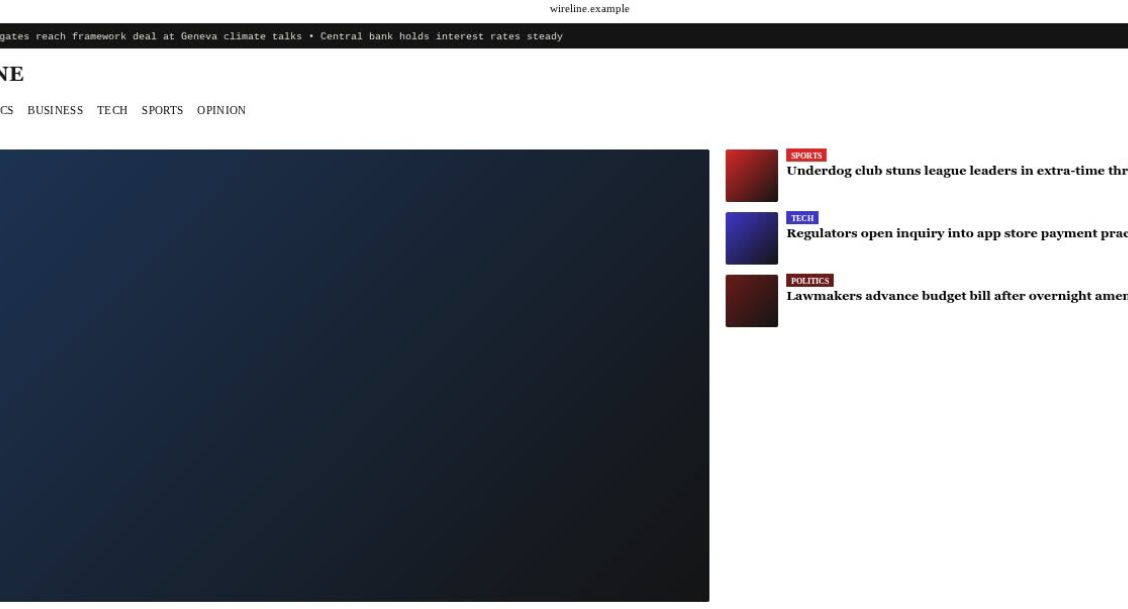
    I built a **CNN-inspired News Homepage** using **HTML5 and CSS3** to strengthen my front-end web development skills. This project recreates the clean and modern layout of a professional news website, featuring a breaking news ticker, navigation menu, hero section, featured news cards, and categorized content.

    ### Features

    * Breaking News Banner
    * Responsive Navigation Bar
    * Hero News Section
    * Clean & Modern UI
    * CSS Flexbox & Grid Layout
    * Fast and Lightweight Design
    * Built with HTML5 & CSS3

    This project helped me practice responsive layouts, typography, spacing, color schemes, and real-world website design principles while recreating a professional news portal interface.

    I'm continuously improving my web development skills by building real-world UI clones and modern web applications.

    #WebDevelopment #HTML #CSS #Frontend #ResponsiveDesign #CNNClone #NewsWebsite #UIDesign #WebDesign #Programming #Coding #Developer #Learning #Portfolio #Tech #OpenToWork
    RSIF8 Roll no 43 Coding post 23 Coding Topic : CNN Clone – Responsive News Homepage I built a **CNN-inspired News Homepage** using **HTML5 and CSS3** to strengthen my front-end web development skills. This project recreates the clean and modern layout of a professional news website, featuring a breaking news ticker, navigation menu, hero section, featured news cards, and categorized content. ### ✨ Features * 📰 Breaking News Banner * 🌍 Responsive Navigation Bar * 🏆 Hero News Section * 📱 Clean & Modern UI * 🎨 CSS Flexbox & Grid Layout * ⚡ Fast and Lightweight Design * 💻 Built with HTML5 & CSS3 This project helped me practice responsive layouts, typography, spacing, color schemes, and real-world website design principles while recreating a professional news portal interface. I'm continuously improving my web development skills by building real-world UI clones and modern web applications. #WebDevelopment #HTML #CSS #Frontend #ResponsiveDesign #CNNClone #NewsWebsite #UIDesign #WebDesign #Programming #Coding #Developer #Learning #Portfolio #Tech #OpenToWork
    0 Σχόλια 0 Μοιράστηκε 2305 Views
  • RSIF8
    Roll no 94
    Task no 9
    Task topic How to use streamyard for interviews
    How to Use StreamYard for Interviews?
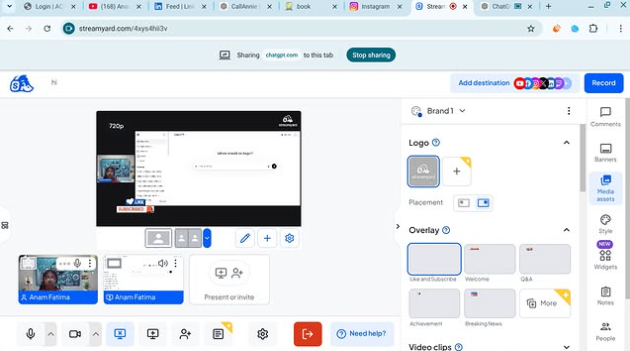
    StreamYard makes online interviews simple and professional! First, sign up and create a broadcast or recording studio. Invite your guest by sharing the interview link —they can join directly from their browser without downloading anything. Customize your layout, add your logo, banners, and branding , then go live on platforms like YouTube, Facebook, or LinkedIn. You can also record interviews, display comments on screen , and create engaging conversations with ease.
    Perfect for podcasts, business interviews, webinars, and content creation!
    #StreamYard #OnlineInterview #Podcasting #LiveStreaming #ContentCreator #DigitalMarketing #VideoInterview #YouTubeLive #FacebookLive #LinkedInLive #RemoteInterview #StreamingTips
    RSIF8 Roll no 94 Task no 9 Task topic How to use streamyard for interviews 📹🎤 How to Use StreamYard for Interviews? StreamYard makes online interviews simple and professional! 🌟 First, sign up and create a broadcast or recording studio. 🎬 Invite your guest by sharing the interview link 🔗—they can join directly from their browser without downloading anything. 💻🎙️ Customize your layout, add your logo, banners, and branding 🎨, then go live on platforms like YouTube, Facebook, or LinkedIn. 📺✨ You can also record interviews, display comments on screen 💬, and create engaging conversations with ease. 🚀 Perfect for podcasts, business interviews, webinars, and content creation! 🎧🎥 #StreamYard #OnlineInterview #Podcasting #LiveStreaming #ContentCreator #DigitalMarketing #VideoInterview #YouTubeLive #FacebookLive #LinkedInLive #RemoteInterview #StreamingTips 🚀🎤📹✨
    0 Σχόλια 0 Μοιράστηκε 6398 Views
  • RSIF8
    Roll no:83
    Task no:4
    Task Topic:How to Create a youtube Account

    Go to YouTube.
    Click Sign In in the top-right corner.
    Sign in with your existing Google account, or create one at Google Account Creation.
    Once signed in, click your profile picture and select Create a Channel.
    Enter your channel name and upload a profile picture.
    Click Create Channel.
    Customize your channel by adding a banner, description, and links.
    Sample YouTube Channel Description

    Welcome to my channel!
    Here you'll find amazing videos about entertainment, lifestyle, tips, and fun content.
    Subscribe and join our growing community.
    Turn on notifications so you never miss an upload!

    Thank you for your support!
    Edited · 13w
    RSIF8 Roll no:83 Task no:4 Task Topic:How to Create a youtube Account📺 Go to YouTube. Click Sign In in the top-right corner. Sign in with your existing Google account, or create one at Google Account Creation. Once signed in, click your profile picture and select Create a Channel. Enter your channel name and upload a profile picture. Click Create Channel. Customize your channel by adding a banner, description, and links. ✨ Sample YouTube Channel Description 🎥 Welcome to my channel! 🌟 Here you'll find amazing videos about entertainment, lifestyle, tips, and fun content. 👍 Subscribe and join our growing community. 🔔 Turn on notifications so you never miss an upload! 💖 Thank you for your support! Edited · 13w
    0 Σχόλια 0 Μοιράστηκε 1441 Views
  • RSIF8
    Roll NO:11
    Task post no : 9
    Task topic How to use streamyard for interviews?

    How to Use StreamYard for Interviews
    Want to host online interviews like a pro? StreamYard lets you go live on YouTube, Facebook, or record professional interviews directly from your browser
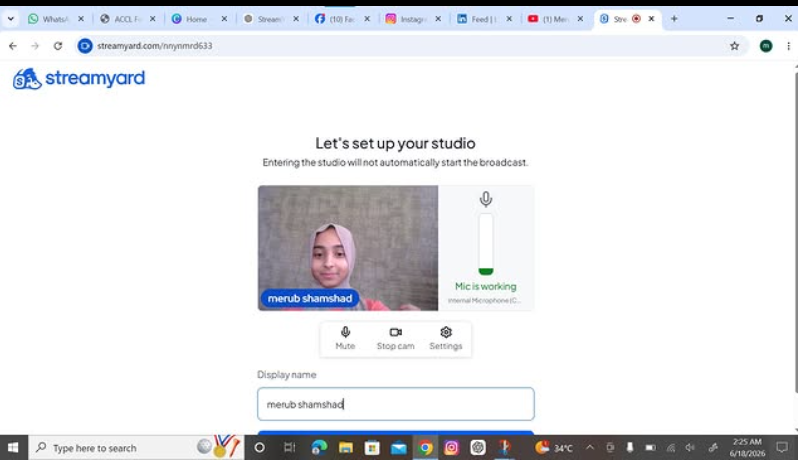
    Step 1 — Open StreamYard
    Start here
    Open StreamYard Studio
    Sign up with Google / Facebook / Email
    Allow camera & microphone
    You are now ready to create your studio
    Step 2 — Create Your Interview Studio
    Click Create a Broadcast
    Choose platform (YouTube / Facebook / Record Only )
    Enter interview title
    Enter the studio
    Boom Your virtual interview room is ready!
    ‍ Step 3 — Invite Your Guest
    This is the magic part
    Click Invite Guests
    Copy the invite link
    Send it to your guest on WhatsApp or Email
    Your guest joins with one click
    Step 4 — Start the Interview
    When your guest joins
    Add them to screen
    Choose layout (side-by-side / full screen)
    Add name banners
    Click Go Live or Record
    You are now LIVE like a real TV show
    Pro Interview Features
    Show comments on screen
    Add logo & background
    Share screen for slides
    Play intro music
    Download recording after interview
    Interview Tips for Success
    Test mic & camera before going live
    Smile and look at camera
    Keep questions ready
    Keep interview 5–15 minutes
    Now you can host professional online interviews from home like a real presenter!
    RSIF8 Roll NO:11 Task post no : 9 Task topic How to use streamyard for interviews? 🎤📺 How to Use StreamYard for Interviews 🤩🎙️💻 Want to host online interviews like a pro? StreamYard lets you go live on YouTube, Facebook, or record professional interviews directly from your browser 🚀🌍✨ ⬇️🌐 Step 1 — Open StreamYard Start here 👇 Open StreamYard Studio🚀 👉 Sign up with Google / Facebook / Email ✉️ 👉 Allow camera 📷 & microphone 🎤 You are now ready to create your studio 🏢✨ 🎬 Step 2 — Create Your Interview Studio 1️⃣ Click Create a Broadcast 🎥 2️⃣ Choose platform (YouTube ▶️ / Facebook 👍 / Record Only 🎬) 3️⃣ Enter interview title 📝 4️⃣ Enter the studio 💻 Boom 💥 Your virtual interview room is ready! 👩‍💻📩 Step 3 — Invite Your Guest This is the magic part ✨ 👉 Click Invite Guests 🔗 👉 Copy the invite link 📋 👉 Send it to your guest on WhatsApp or Email 📲✉️ Your guest joins with one click 😍 🎤🗣️ Step 4 — Start the Interview When your guest joins 👇 ✅ Add them to screen 👥 ✅ Choose layout (side-by-side / full screen) 🖥️ ✅ Add name banners 🏷️ ✅ Click Go Live 🔴 or Record 🎬 You are now LIVE like a real TV show 📺🔥 ✨🎯 Pro Interview Features 🌟 Show comments on screen 💬 🌟 Add logo & background 🖼️ 🌟 Share screen for slides 📊 🌟 Play intro music 🎵 🌟 Download recording after interview 💾 💡🔥 Interview Tips for Success 🎯 Test mic & camera before going live 😊 Smile and look at camera 📋 Keep questions ready ⏰ Keep interview 5–15 minutes 🎉📺 Now you can host professional online interviews from home like a real presenter! 🎤🌍💥
    0 Σχόλια 0 Μοιράστηκε 1684 Views
  • #RSTA
    #Task : Account Creation
    #Class: Foundation Level
    #Day No: 4
    #Made By Me

    Total Post:4


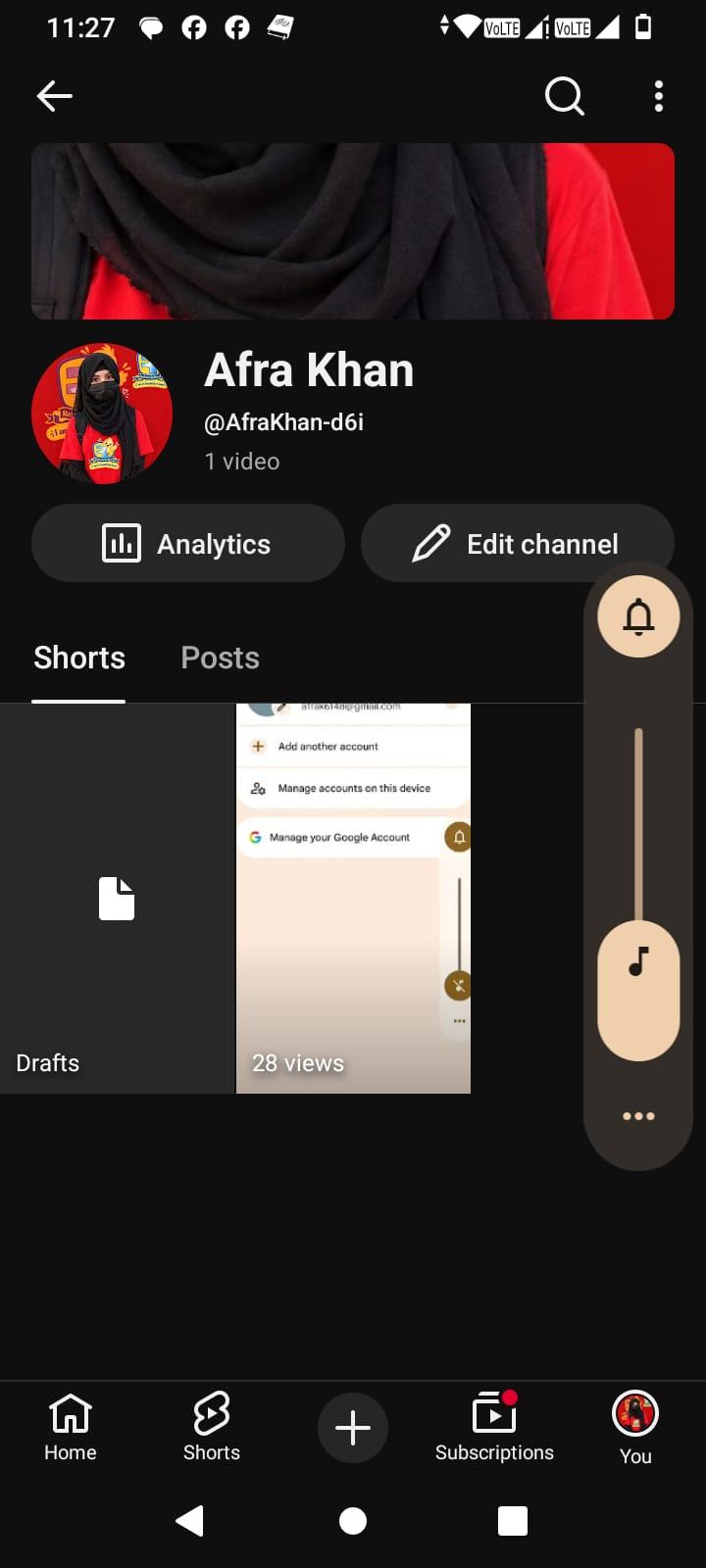
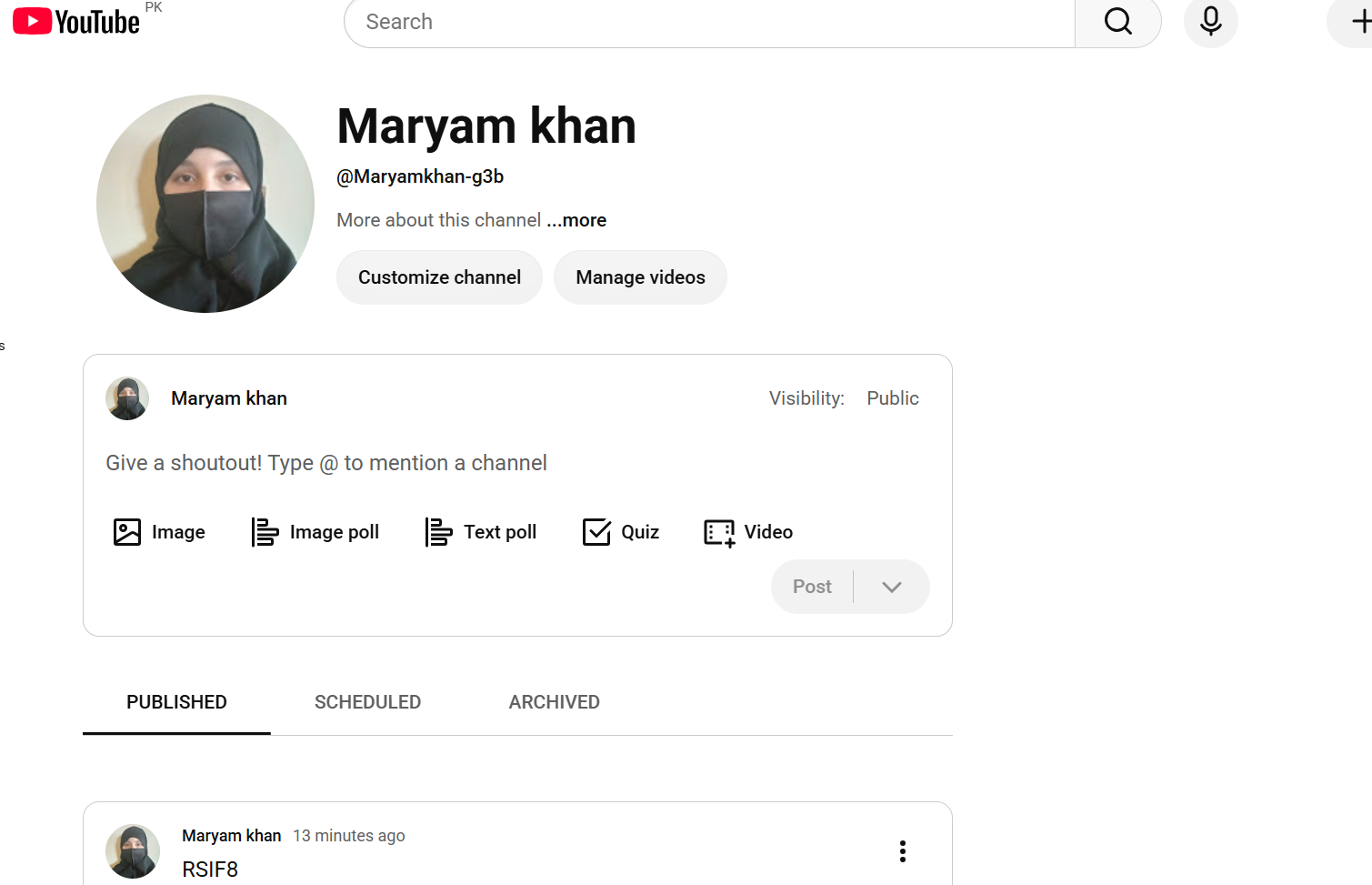
    Today, I completed a task to create a YouTube channel. First, I visited YouTube and signed in with my Google account. Then, I clicked on my profile icon and selected **“Create a Channel.”**

    After creating the channel, I added a profile picture, banner, and channel description. I also uploaded my first video and learned how to choose the correct privacy settings.

    This task helped me learn the basic steps of creating and setting up a YouTube channel. It was a simple and useful learning experience that improved my digital skills.
    #RSTA #Task : Account Creation #Class: Foundation Level #Day No: 4 #Made By Me Total Post:4 Today, I completed a task to create a YouTube channel. First, I visited YouTube and signed in with my Google account. Then, I clicked on my profile icon and selected **“Create a Channel.”** After creating the channel, I added a profile picture, banner, and channel description. I also uploaded my first video and learned how to choose the correct privacy settings. This task helped me learn the basic steps of creating and setting up a YouTube channel. It was a simple and useful learning experience that improved my digital skills. 🎥
    0 Σχόλια 0 Μοιράστηκε 914 Views
  • #RSTA
    #Task : Account Creation
    #Class: Foundation Level
    #Day No: 2
    #Made By Me

    Total Post:2


    Today, I completed a task to create a YouTube channel. First, I visited YouTube and signed in with my Google account. Then, I clicked on my profile icon and selected the option to create a channel.

    After creating the channel, I added a profile picture, banner, and a short description. I also uploaded my first video and learned how to set its privacy options.

    This task helped me learn how to create and manage a YouTube channel. It was a simple and useful experience that improved my digital skills.
    #RSTA #Task : Account Creation #Class: Foundation Level #Day No: 2 #Made By Me Total Post:2 Today, I completed a task to create a YouTube channel. First, I visited YouTube and signed in with my Google account. Then, I clicked on my profile icon and selected the option to create a channel. After creating the channel, I added a profile picture, banner, and a short description. I also uploaded my first video and learned how to set its privacy options. This task helped me learn how to create and manage a YouTube channel. It was a simple and useful experience that improved my digital skills. 🎥💻
    0 Σχόλια 0 Μοιράστηκε 822 Views
  • RSIF8
    Roll no:112
    Task no:4
    Task Topic: How to Create a YouTube Account & Start Your Channel!
    Want to start your own YouTube channel? Follow these simple steps to create your account and get started!
    Go to YouTube.com
    Click Sign In and log in with your Google account
    Click your profile icon and choose Create a Channel
    Add a profile picture and channel banner
    Write an attractive channel description
    Upload your first video
    Choose the right privacy settings
    Your YouTube channel is ready!
    Tip: Create interesting content, use a clear thumbnail, and stay consistent to grow your channel.
    #YouTube #YouTubeChannel #CreateYouTubeAccount #YouTubeTips #YouTubeTutorial #YouTubeCreator #ContentCreator #StartYouTube #YouTubeBeginners #VideoCreator #SocialMedia #DigitalSkills #TechTips #OnlineLearning #YouTubeGrowth
    RSIF8 Roll no:112 Task no:4 Task Topic: How to Create a YouTube Account & Start Your Channel! ▶️📱 Want to start your own YouTube channel? 🚀 Follow these simple steps to create your account and get started! 👇 🌐 Go to YouTube.com 🔐 Click Sign In and log in with your Google account 👤 Click your profile icon and choose Create a Channel 🖼️ Add a profile picture and channel banner 📝 Write an attractive channel description 🎬 Upload your first video 🔒 Choose the right privacy settings 🎉 Your YouTube channel is ready! 💡 Tip: Create interesting content, use a clear thumbnail, and stay consistent to grow your channel. 🌟📈 #YouTube #YouTubeChannel #CreateYouTubeAccount #YouTubeTips #YouTubeTutorial #YouTubeCreator #ContentCreator #StartYouTube #YouTubeBeginners #VideoCreator #SocialMedia #DigitalSkills #TechTips #OnlineLearning #YouTubeGrowth
    0 Σχόλια 0 Μοιράστηκε 4971 Views
  • I am Professional Graphic Designer?
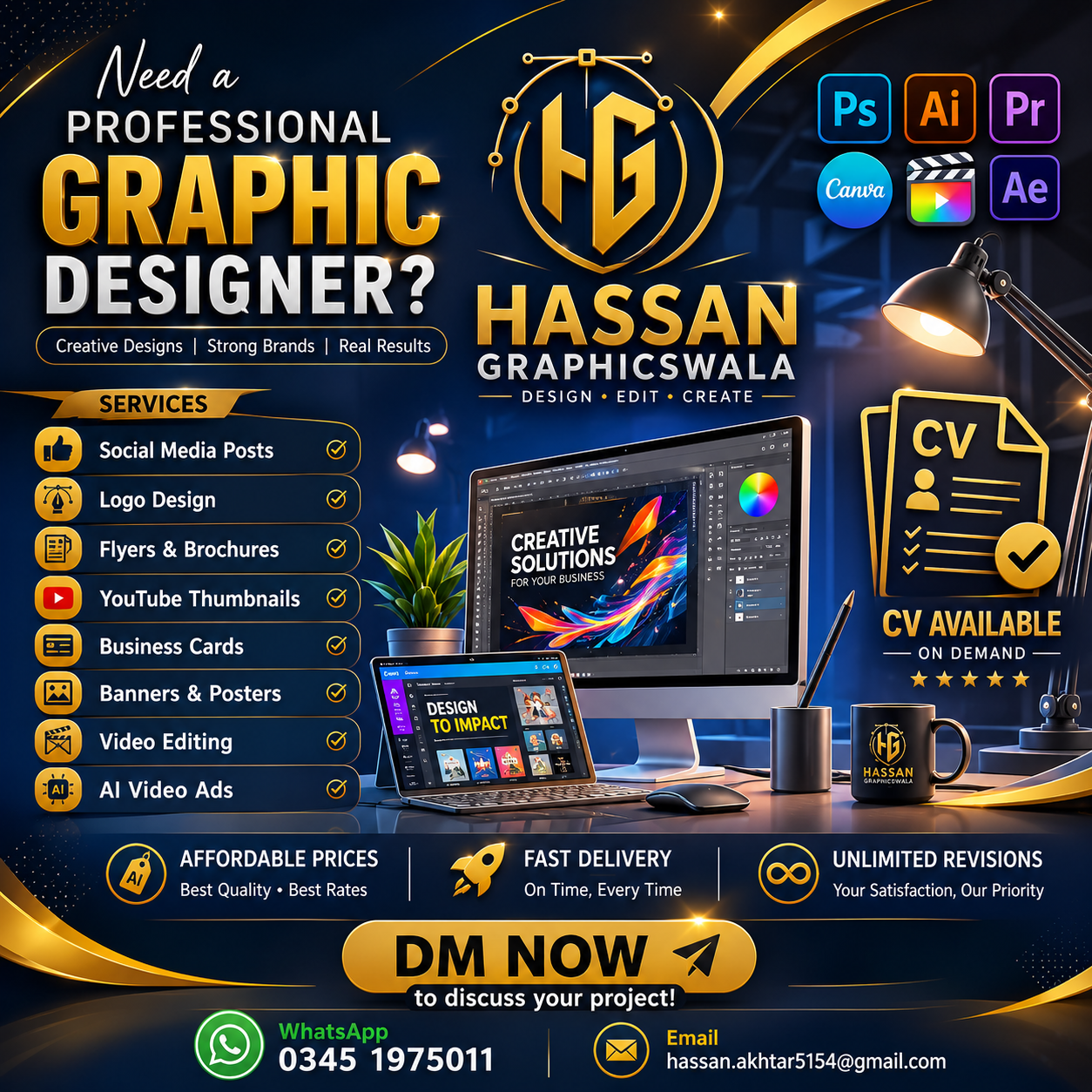
    Grow your brand with creative, eye-catching designs that make an impact!
    Social Media Posts | Logo Design | Flyers & Brochures
    YouTube Thumbnails | Business Cards | Banners & Posters
    Video Editing | AI Video Ads
    Affordable Prices | Fast Delivery | Unlimited Revisions
    CV Available on Demand
    DM now to discuss your project!
    WhatsApp: 0345 1975011
    hassan.akhtar5154@gmail.com
    #GraphicDesigner #GraphicDesign #HassanGraphicswala #LogoDesign #SocialMediaDesign #YouTubeThumbnail #AIvideoAds #VideoEditing #CreativeDesign #Freelancer #DigitalMarketing #Branding #PakistanDesigner
    I am Professional Graphic Designer? Grow your brand with creative, eye-catching designs that make an impact! 🎨✨ ✅ Social Media Posts | Logo Design | Flyers & Brochures ✅ YouTube Thumbnails | Business Cards | Banners & Posters ✅ Video Editing | AI Video Ads 💰 Affordable Prices | ⚡ Fast Delivery | 🔄 Unlimited Revisions 📄 CV Available on Demand 📩 DM now to discuss your project! 📞 WhatsApp: 0345 1975011 📧 hassan.akhtar5154@gmail.com #GraphicDesigner #GraphicDesign #HassanGraphicswala #LogoDesign #SocialMediaDesign #YouTubeThumbnail #AIvideoAds #VideoEditing #CreativeDesign #Freelancer #DigitalMarketing #Branding #PakistanDesigner
    0 Σχόλια 0 Μοιράστηκε 10532 Views
Αναζήτηση αποτελεσμάτων