
• RSIF8
    ROLL NO:13
    TASK NO:9

    How to Use Restream for Interviews?

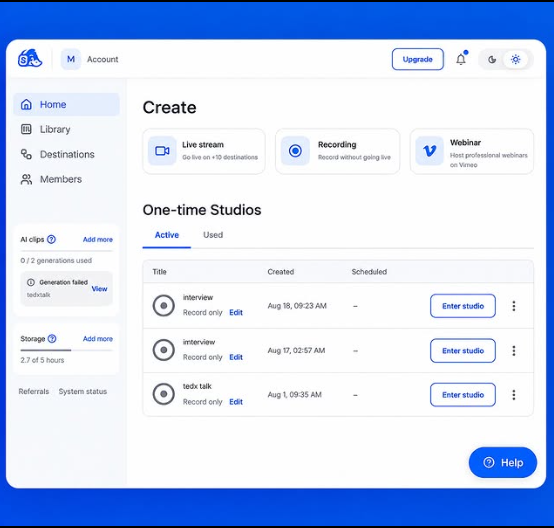
    Restream is a useful online platform that can make interviews, live conversations, and online sessions easier to organize and share. It allows you to connect with your guest and broadcast your interview to different platforms, helping more people watch and engage with your content.

    To use Restream for an interview, first create an account and set up your live stream. You can connect the social media platforms where you want your interview to appear. After that, prepare your interview space by checking your camera, microphone, internet connection, and lighting. A clear audio and video setup can make the interview much more enjoyable for viewers.

    Next, invite your guest to join the interview. Before going live, it is a good idea to test the camera and microphone with your guest so that both of you are ready. You can prepare a few simple questions in advance, but you should also allow the conversation to flow naturally. Start the interview with a friendly introduction, introduce your guest, and explain the topic you will discuss.

    During the interview, listen carefully to your guest and ask questions clearly. Avoid interrupting, give your guest enough time to answer, and keep the conversation interesting and respectful. Restream can help you manage the live broadcast while you focus on the conversation.

    After the interview, you can review the recording, share highlights, and use the experience to improve your future interviews. Interviews are a great way to learn from other people, discover new ideas, improve communication skills, and build confidence in speaking.

    Learning to use tools like Restream is also a valuable digital skill. With practice, students can become more comfortable with online communication, live streaming, teamwork, and content creation.

    The goal is not only to conduct an interview, but also to learn how technology can connect people, share knowledge, and create meaningful conversations.

    #Restream #OnlineInterview #LiveInterview #InterviewSkills #CommunicationSkills #DigitalSkills #ContentCreation #LiveStreaming #Learning #StudentProjects #Technology #RSF8
    RSIF8 ROLL NO:13 TASK NO:9 🎥 How to Use Restream for Interviews? 🎤🌐 Restream is a useful online platform that can make interviews, live conversations, and online sessions easier to organize and share. It allows you to connect with your guest and broadcast your interview to different platforms, helping more people watch and engage with your content. To use Restream for an interview, first create an account and set up your live stream. You can connect the social media platforms where you want your interview to appear. After that, prepare your interview space by checking your camera, microphone, internet connection, and lighting. A clear audio and video setup can make the interview much more enjoyable for viewers. Next, invite your guest to join the interview. Before going live, it is a good idea to test the camera and microphone with your guest so that both of you are ready. You can prepare a few simple questions in advance, but you should also allow the conversation to flow naturally. Start the interview with a friendly introduction, introduce your guest, and explain the topic you will discuss. During the interview, listen carefully to your guest and ask questions clearly. Avoid interrupting, give your guest enough time to answer, and keep the conversation interesting and respectful. Restream can help you manage the live broadcast while you focus on the conversation. After the interview, you can review the recording, share highlights, and use the experience to improve your future interviews. Interviews are a great way to learn from other people, discover new ideas, improve communication skills, and build confidence in speaking. Learning to use tools like Restream is also a valuable digital skill. With practice, students can become more comfortable with online communication, live streaming, teamwork, and content creation. 🚀💻 ✨ The goal is not only to conduct an interview, but also to learn how technology can connect people, share knowledge, and create meaningful conversations. #Restream #OnlineInterview #LiveInterview #InterviewSkills #CommunicationSkills #DigitalSkills #ContentCreation #LiveStreaming #Learning #StudentProjects #Technology #RSF8🎓✨
    0 Σχόλια 0 Μοιράστηκε 552 Views
  • RSIF8
    Roll no 99
    Codind Task no 4
    Task topic Complete a small coding challenge Number Guessing Game.
    **Number Guessing Game Completed!**
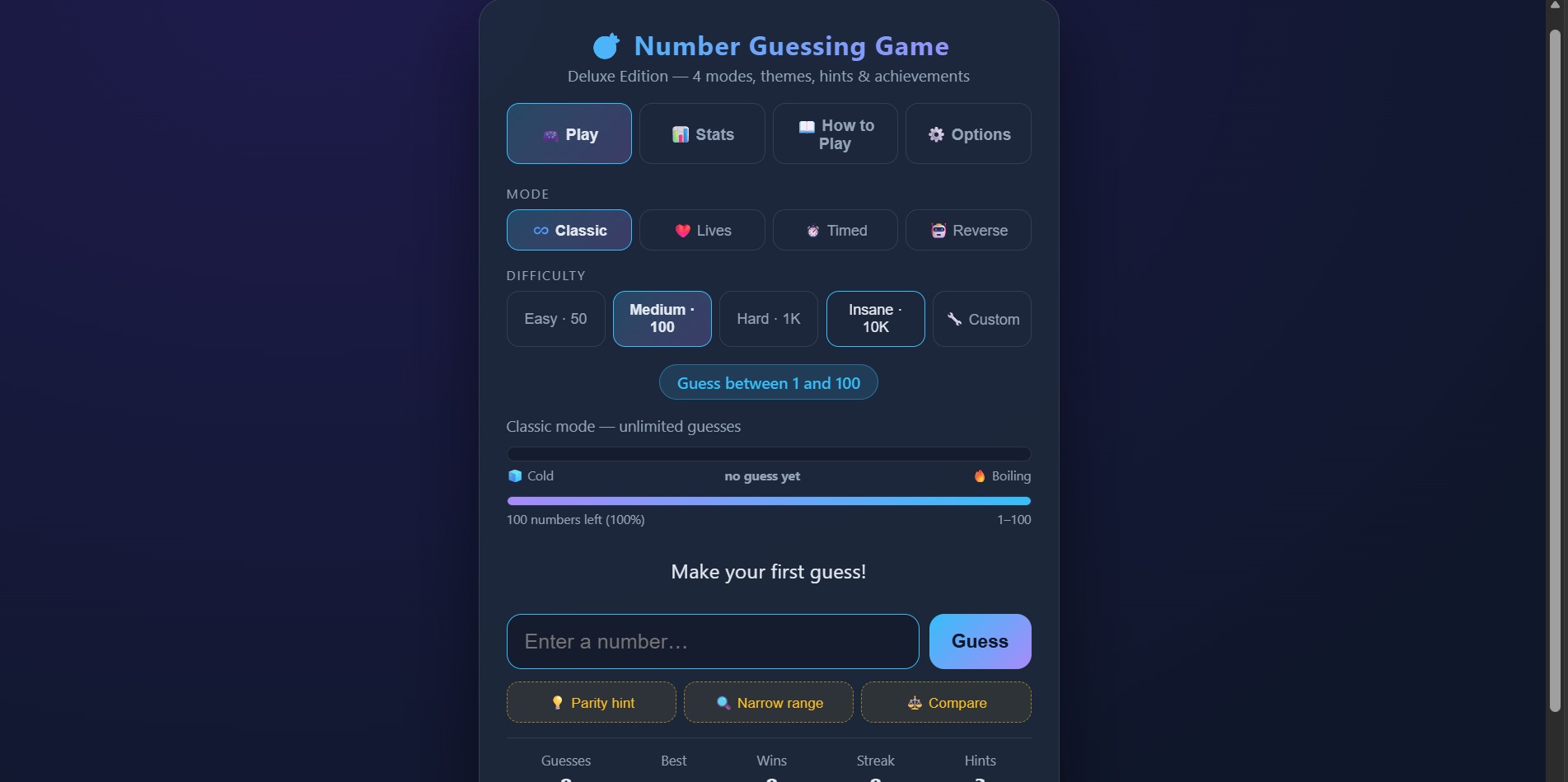
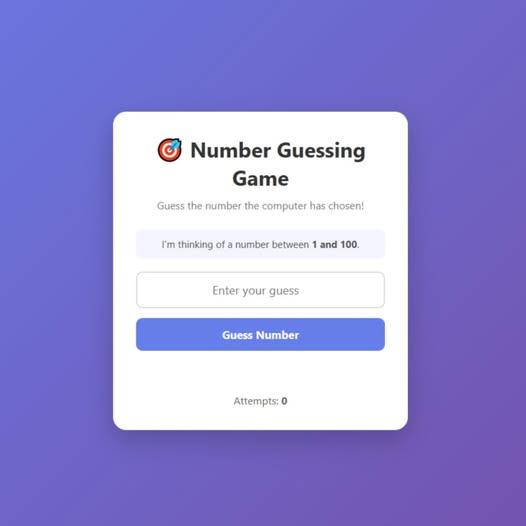
    I successfully built a simple **Number Guessing Game** using code! In this game, the computer selects a random number, and the player tries to guess it. The game gives hints like **Too High ** or **Too Low ** until the correct number is guessed.
    This project helped me understand:
    Random numbers
    User input
    Conditional statements
    Loops
    Coding is like solving a puzzle—every line of code brings you closer to the solution!
    #NumberGuessingGame #CodingChallenge #PythonProgramming #LearnToCode #ProgrammingFun #CodeWithConfidence #FutureProgrammer #TechSkills #CodingJourney #STEMEducation #RehanSchool #AIEducation #StudentProjects #GameDevelopment #PythonGame
    RSIF8 Roll no 99 Codind Task no 4 Task topic Complete a small coding challenge Number Guessing Game. ✨ **Number Guessing Game Completed!** ✨ I successfully built a simple **Number Guessing Game** using code! 💻 In this game, the computer selects a random number, and the player tries to guess it. The game gives hints like **Too High 📈** or **Too Low 📉** until the correct number is guessed. 🎉 This project helped me understand: 🔹 Random numbers 🎲 🔹 User input ⌨️ 🔹 Conditional statements 🤔 🔹 Loops 🔁 Coding is like solving a puzzle—every line of code brings you closer to the solution! 🧩🚀 #NumberGuessingGame #CodingChallenge #PythonProgramming #LearnToCode #ProgrammingFun #CodeWithConfidence #FutureProgrammer #TechSkills #CodingJourney #STEMEducation #RehanSchool #AIEducation #StudentProjects #GameDevelopment #PythonGame
    0 Σχόλια 0 Μοιράστηκε 1926 Views
  • RSIF8
    Roll No: 112
    Story Post No:3
    Story Post Topic: Number Guessing Game **
    Today, I completed an exciting coding task called **“Number Guessing Game.”** This project helped me practice programming concepts in a fun and interactive way.
    In this game, the computer chooses a secret number, and the player tries to guess it. After each guess, the program gives helpful feedback so the player can continue trying until the correct number is found.
    While working on this project, I practiced important programming skills such as **variables, user input, conditions, loops, random numbers, and logical thinking**.
    This activity was a great way to improve my problem-solving skills and understand how simple programming concepts can be combined to create an enjoyable game. ‍
    I enjoyed completing this project and look forward to creating more interesting and creative coding projects in the future!
    #NumberGuessingGame #Coding #Programming ‍ #Python #CodingProject #ProblemSolving #LearningToCode #GameDevelopment #Technology #RSIF8 #StudentProjects
    ‍
    RSIF8 Roll No: 112 Story Post No:3 Story Post Topic: Number Guessing Game 🎲💻** Today, I completed an exciting coding task called **“Number Guessing Game.”** 🎮🔢 This project helped me practice programming concepts in a fun and interactive way. In this game, the computer chooses a secret number, and the player tries to guess it. After each guess, the program gives helpful feedback so the player can continue trying until the correct number is found. 💡🎯 While working on this project, I practiced important programming skills such as **variables, user input, conditions, loops, random numbers, and logical thinking**. 💻🧠✨ This activity was a great way to improve my problem-solving skills and understand how simple programming concepts can be combined to create an enjoyable game. 🚀👨‍💻 I enjoyed completing this project and look forward to creating more interesting and creative coding projects in the future! 🌟💻🎮 #NumberGuessingGame 🔢 #Coding 💻 #Programming 👨‍💻 #Python 🐍 #CodingProject 🚀 #ProblemSolving 🧠 #LearningToCode 📚 #GameDevelopment 🎮 #Technology 🌐 #RSIF8 🎓 #StudentProjects ✨ 🎮🔢💻🧠🎯🚀🐍📚🌟✨👨‍💻🎲
    0 Σχόλια 0 Μοιράστηκε 1293 Views
  • #rsisb
    Roll no 279
    codig task no 8
    Foundtion level

    **Currency Converter**
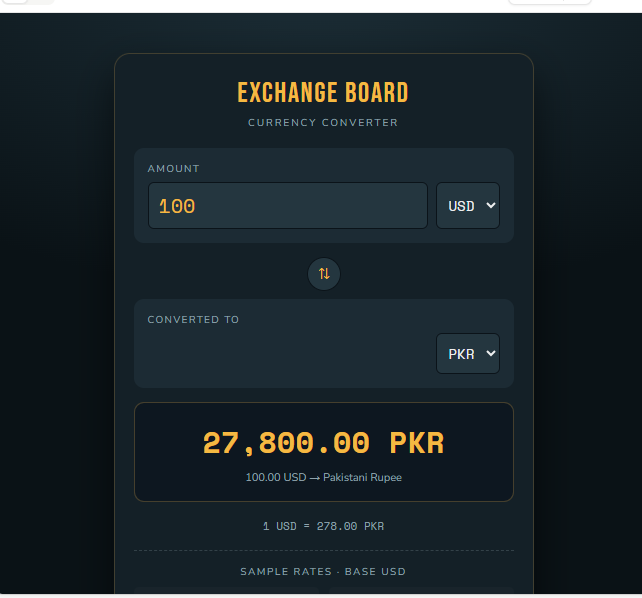
    Currency Converter is a simple and useful tool that makes it easy to understand the value of money in different countries. Whether you are learning about international currencies , planning a trip , comparing prices , or working on a school project , a currency converter can help you quickly calculate one currency into another.
    Simply enter an amount, select the currency you have, choose the currency you want, and get the converted value in seconds!
    It can help users understand exchange rates and see how currencies compare with each other. The tool is especially helpful for travelers, students, online shoppers, businesses, and anyone interested in global finance.
    **Learn • Convert • Compare • Explore**
    Remember that exchange rates can change over time, so conversions may vary depending on when and where the rate is obtained.
    #CurrencyConverter #CurrencyExchange #MoneyMatters #Finance #GlobalCurrency #ExchangeRates #TravelTools #SmartTools #Learning #Technology #InternationalFinance #MoneyConversion #UsefulTools #StudentProjects
    Asma Shaheen EducationWali
    Saima Happinesswali
    Irum Asim Leadershipwali
    #rsisb Roll no 279 codig task no 8 Foundtion level 💱🌍 **Currency Converter** 🌍💱 Currency Converter is a simple and useful tool that makes it easy to understand the value of money in different countries. 💰✨ Whether you are learning about international currencies 🌎, planning a trip ✈️, comparing prices 🛍️, or working on a school project 📚, a currency converter can help you quickly calculate one currency into another. 🔄 Simply enter an amount, select the currency you have, choose the currency you want, and get the converted value in seconds! ⚡💵➡️💶➡️💷➡️💴 📊 It can help users understand exchange rates and see how currencies compare with each other. The tool is especially helpful for travelers, students, online shoppers, businesses, and anyone interested in global finance. 🌐📈 🎯 **Learn • Convert • Compare • Explore** 🚀 💡 Remember that exchange rates can change over time, so conversions may vary depending on when and where the rate is obtained. #CurrencyConverter #CurrencyExchange #MoneyMatters #Finance #GlobalCurrency #ExchangeRates #TravelTools #SmartTools #Learning #Technology #InternationalFinance #MoneyConversion #UsefulTools #StudentProjects 💱💰🌍✈️📚🚀 Asma Shaheen EducationWali Saima Happinesswali Irum Asim Leadershipwali
    0 Σχόλια 0 Μοιράστηκε 3154 Views
  • #rsisb
    Roll no. 214
    Foundation level
    Coding task no.20

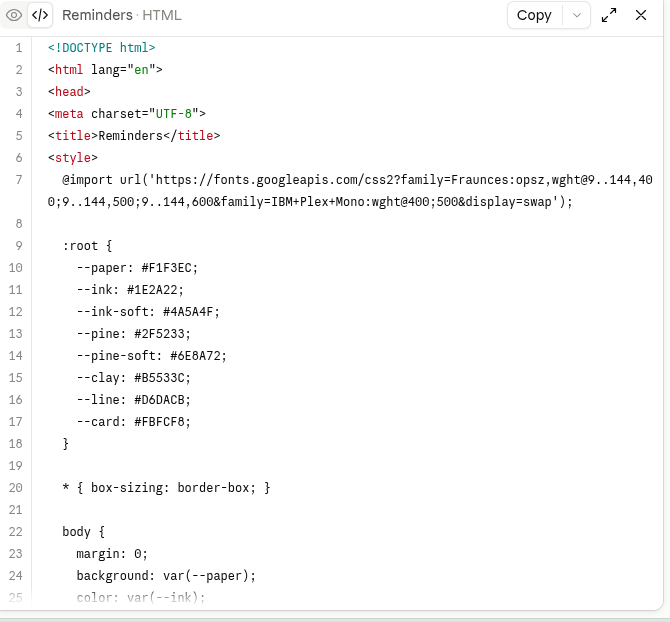
    Never forget an important task again! The **Reminder App** helps you create, manage, and organize reminders for your daily activities, homework, meetings, birthdays, and special events.

    This simple and useful app is great for learning **app development, coding, and time management**. Stay organized, stay focused, and complete your tasks on time!

    #ReminderApp #AppDevelopment #Coding #Programming ‍ #StudentProjects #TimeManagement #DailyTasks #LearningToCode #TechProject #SimpleApp
    #rsisb Roll no. 214 Foundation level Coding task no.20 Never forget an important task again! ✅ The **Reminder App** helps you create, manage, and organize reminders for your daily activities, homework, meetings, birthdays, and special events. 📝🔔 This simple and useful app is great for learning **app development, coding, and time management**. 💻🚀 Stay organized, stay focused, and complete your tasks on time! 🎯🌟 #ReminderApp ⏰ #AppDevelopment 📱 #Coding 💻 #Programming 👩‍💻 #StudentProjects 🎓 #TimeManagement ⏳ #DailyTasks 📝 #LearningToCode 🚀 #TechProject 🌟 #SimpleApp ❤️
    0 Σχόλια 0 Μοιράστηκε 2124 Views
  • #rsisb
    Roll No.269
    Foundation Level
    Account Creation

    ## How to Use Restream for Interviews?

    **Restream** is a streaming platform that lets you host an online interview and broadcast it to multiple platforms at the same time. It can be useful for school interviews, online discussions, podcasts, and live sessions.

    ### Video Description

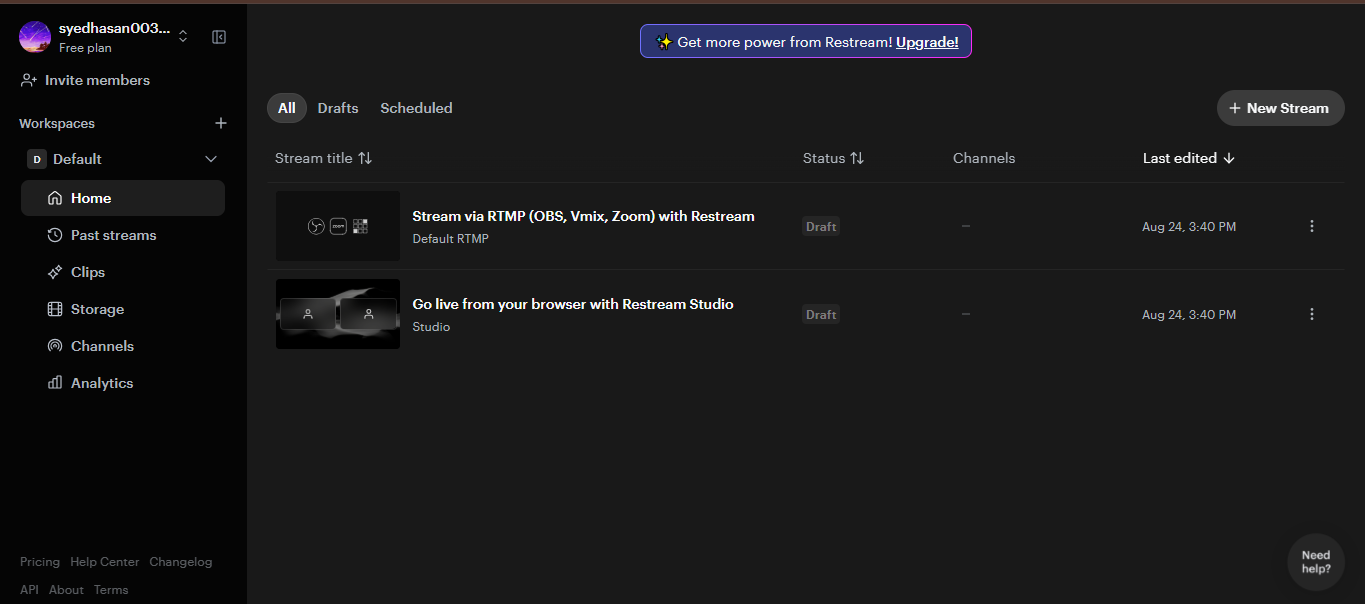
    In this video, I will explain **how to use Restream for interviews** step by step. We will learn how to create a Restream account, set up a live studio, invite a guest, check the microphone and camera, and prepare everything before starting the interview.

    I will also explain how to add your guest to the interview, manage the interview screen, use the chat, share your screen, and control the live broadcast.

    ### Topics Covered

    What is Restream?
    How to create an account
    How to open Restream Studio
    How to set up your camera and microphone
    How to invite a guest
    How to prepare interview questions
    How to check audio and video
    How to share your screen
    How to use the interview layout
    How to manage comments and chat
    How to start and end the interview
    Basic tips for a smooth online interview

    Restream can make online interviews more organized and professional. Whether you are a **student, teacher, content creator, or beginner**, this tutorial will help you understand the basic process of conducting an interview online.

    If you enjoy this video, don't forget to **Like , Share , and Subscribe ** for more tutorials, technology guides, and student projects.

    Thank you for watching!
    Keep learning, keep practicing, and keep creating!

    #Restream #RestreamStudio #HowToUseRestream #RestreamInterview #OnlineInterview #InterviewTutorial #LiveStreaming #LiveInterview #StreamingTips #DigitalSkills #Technology #StudentProjects #OnlineLearning #ContentCreation #LiveStream #TechTutorial #BeginnerGuide #Education
    #rsisb Roll No.269 Foundation Level Account Creation ## 🎥 How to Use Restream for Interviews? **Restream** is a streaming platform that lets you host an online interview and broadcast it to multiple platforms at the same time. It can be useful for school interviews, online discussions, podcasts, and live sessions. 🎤💻 ### 📝 Video Description In this video, I will explain **how to use Restream for interviews** step by step. 🎙️✨ We will learn how to create a Restream account, set up a live studio, invite a guest, check the microphone and camera, and prepare everything before starting the interview. I will also explain how to add your guest to the interview, manage the interview screen, use the chat, share your screen, and control the live broadcast. 💻🎤 ### 🎯 Topics Covered ✅ What is Restream? ✅ How to create an account ✅ How to open Restream Studio ✅ How to set up your camera and microphone ✅ How to invite a guest ✅ How to prepare interview questions ✅ How to check audio and video ✅ How to share your screen ✅ How to use the interview layout ✅ How to manage comments and chat ✅ How to start and end the interview ✅ Basic tips for a smooth online interview Restream can make online interviews more organized and professional. Whether you are a **student, teacher, content creator, or beginner**, this tutorial will help you understand the basic process of conducting an interview online. 🌟📚 If you enjoy this video, don't forget to **Like 👍, Share 📤, and Subscribe 🔔** for more tutorials, technology guides, and student projects. Thank you for watching! 🙏 Keep learning, keep practicing, and keep creating! 🚀💻🎙️ #Restream #RestreamStudio #HowToUseRestream #RestreamInterview #OnlineInterview #InterviewTutorial #LiveStreaming #LiveInterview #StreamingTips #DigitalSkills #Technology #StudentProjects #OnlineLearning #ContentCreation #LiveStream #TechTutorial #BeginnerGuide #Education 🎤💻✨
    0 Σχόλια 0 Μοιράστηκε 6151 Views
  • #rsisb
    Roll No.269
    Foundation Level
    Account Creation


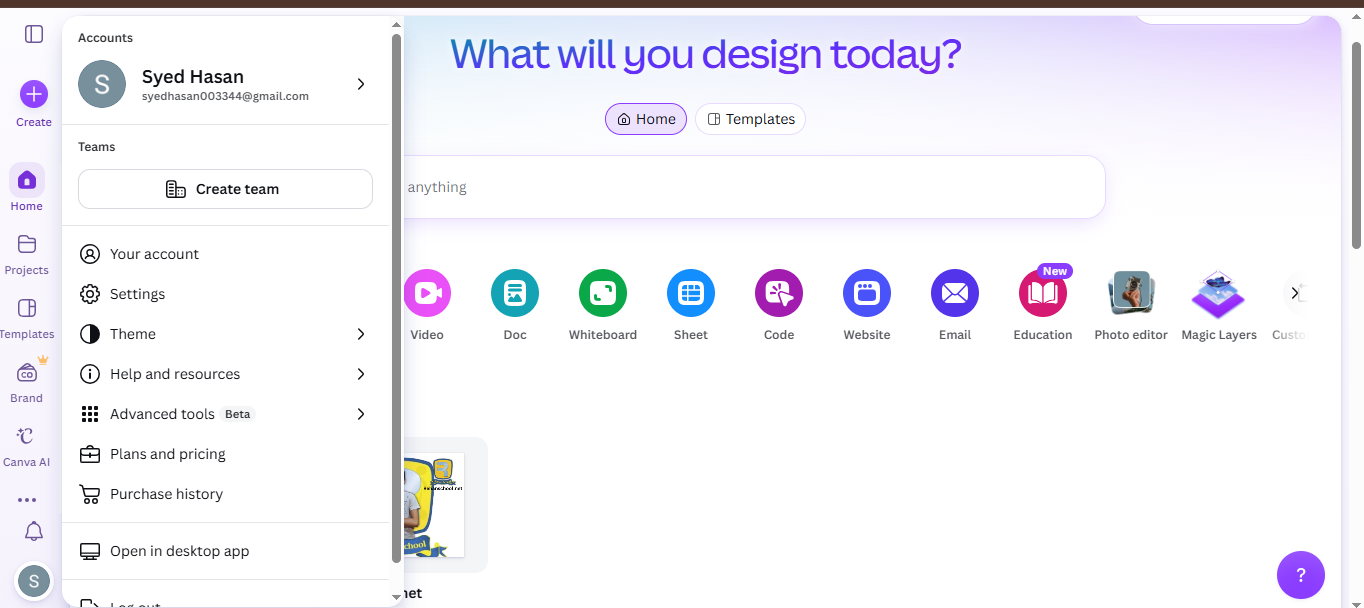
    **How to Download and Use Canva? | Complete Canva Tutorial for Beginners**
    Assalamualaikum everyone!
    My name is **Syed Hasan**, and I am a Foundation Level student at **Rehan School, Islamabad Campus**. In this video, I am going to explain **How to Download and Use Canva** in a simple, easy, and beginner-friendly way.
    Canva is one of the most useful and easy-to-learn design platforms for students, teachers, content creators, and anyone who wants to create beautiful digital designs without needing advanced graphic-design skills. With Canva, you can create presentations, posters, YouTube thumbnails, social media posts, invitations, certificates, videos, logos, school projects, and many other creative designs.
    In this video, I will guide you through the basic steps of getting started with Canva. First, we will learn **what Canva is and why it is useful**. Then, I will explain how to open Canva and how to create or log into your Canva account.
    After that, we will explore the Canva home screen and learn how to find different design templates. Templates can make designing much easier because you can start with an existing layout and customize it according to your own needs.
    You will also learn how to **choose a template, add and edit text, change fonts, change colors, add pictures, use shapes and elements, upload your own images, and arrange different objects on the page**. Canva gives you many creative tools that allow you to make your designs look attractive and professional.
    I will also explain how you can create designs for different purposes. For example, students can use Canva for **school presentations, project covers, posters, educational charts, certificates, and assignments**. Content creators can use Canva for **YouTube thumbnails, video graphics, social media posts, banners, and other online content**.
    Another important part of Canva is learning how to save and download your work. In this tutorial, I will show you how to use the **Share and Download** options and how to select a suitable file format, such as PNG, JPG, or PDF, depending on the type of design you are creating.
    **What You Will Learn in This Video:**
    What is Canva?
    Why Canva is useful
    How to open Canva
    How to create a Canva account
    How to log in to Canva
    How to understand the Canva homepage
    How to search for templates
    How to select a design template
    How to add and edit text
    How to change fonts and text size
    How to change colors
    How to add pictures and images
    How to upload your own pictures
    How to add shapes and design elements
    How to create presentations
    How to make posters
    How to create YouTube thumbnails
    How to create social media designs
    How to edit your designs
    How to save your Canva project
    How to download your finished design
    Basic Canva tips for beginners
    Canva is a great platform for developing **creativity, digital skills, communication skills, and design skills**. Learning Canva can also help students create better presentations and make their school projects more interesting and visually appealing.
    If you are completely new to Canva, don't worry! This video is designed to explain the basic features step by step so that beginners can follow along easily. By the end of the video, you should have a better understanding of how Canva works and how you can start creating your own designs.
    I hope you enjoy this tutorial and learn something useful from it! If you find this video helpful, please **LIKE , SHARE , and SUBSCRIBE ** to support me and my learning journey.
    Thank you so much for watching!
    Keep learning , keep creating , and keep improving every day!
    #Canva #CanvaTutorial #HowToUseCanva #CanvaForBeginners #HowToDownloadCanva #LearnCanva #CanvaDesign #GraphicDesign #DesignTutorial #DigitalSkills #GraphicDesignForBeginners #CanvaTips #CanvaTemplates #YouTubeThumbnail #ThumbnailDesign #PresentationDesign #PosterDesign #SchoolProjects #StudentProjects #CreativeDesign #ContentCreation #SocialMediaDesign #DigitalDesign #Education #Technology #Learning #BeginnersGuide #OnlineLearning #CreativeSkills
    #rsisb Roll No.269 Foundation Level Account Creation 🎨 **How to Download and Use Canva? | Complete Canva Tutorial for Beginners** 💻✨ Assalamualaikum everyone! 👋 My name is **Syed Hasan**, and I am a Foundation Level student at **Rehan School, Islamabad Campus**. 🎓 In this video, I am going to explain **How to Download and Use Canva** in a simple, easy, and beginner-friendly way. 🚀 Canva is one of the most useful and easy-to-learn design platforms for students, teachers, content creators, and anyone who wants to create beautiful digital designs without needing advanced graphic-design skills. 🎨💻 With Canva, you can create presentations, posters, YouTube thumbnails, social media posts, invitations, certificates, videos, logos, school projects, and many other creative designs. 🌟📚 In this video, I will guide you through the basic steps of getting started with Canva. First, we will learn **what Canva is and why it is useful**. Then, I will explain how to open Canva and how to create or log into your Canva account. 🔐 After that, we will explore the Canva home screen and learn how to find different design templates. 🖥️✨ Templates can make designing much easier because you can start with an existing layout and customize it according to your own needs. You will also learn how to **choose a template, add and edit text, change fonts, change colors, add pictures, use shapes and elements, upload your own images, and arrange different objects on the page**. 📝🖼️🔤 Canva gives you many creative tools that allow you to make your designs look attractive and professional. I will also explain how you can create designs for different purposes. For example, students can use Canva for **school presentations, project covers, posters, educational charts, certificates, and assignments**. 🎓📖 Content creators can use Canva for **YouTube thumbnails, video graphics, social media posts, banners, and other online content**. 🎥📱 Another important part of Canva is learning how to save and download your work. 📥 In this tutorial, I will show you how to use the **Share and Download** options and how to select a suitable file format, such as PNG, JPG, or PDF, depending on the type of design you are creating. 💡 **What You Will Learn in This Video:** ✅ What is Canva? ✅ Why Canva is useful ✅ How to open Canva ✅ How to create a Canva account ✅ How to log in to Canva ✅ How to understand the Canva homepage ✅ How to search for templates ✅ How to select a design template ✅ How to add and edit text ✅ How to change fonts and text size ✅ How to change colors ✅ How to add pictures and images ✅ How to upload your own pictures ✅ How to add shapes and design elements ✅ How to create presentations ✅ How to make posters ✅ How to create YouTube thumbnails ✅ How to create social media designs ✅ How to edit your designs ✅ How to save your Canva project ✅ How to download your finished design ✅ Basic Canva tips for beginners 🎨✨ Canva is a great platform for developing **creativity, digital skills, communication skills, and design skills**. 🌟 Learning Canva can also help students create better presentations and make their school projects more interesting and visually appealing. If you are completely new to Canva, don't worry! 😊 This video is designed to explain the basic features step by step so that beginners can follow along easily. By the end of the video, you should have a better understanding of how Canva works and how you can start creating your own designs. I hope you enjoy this tutorial and learn something useful from it! ❤️ If you find this video helpful, please **LIKE 👍, SHARE 📤, and SUBSCRIBE 🔔** to support me and my learning journey. Thank you so much for watching! 🙏✨ Keep learning 📚, keep creating 🎨, and keep improving every day! 🚀💻 #Canva #CanvaTutorial #HowToUseCanva #CanvaForBeginners #HowToDownloadCanva #LearnCanva #CanvaDesign #GraphicDesign #DesignTutorial #DigitalSkills #GraphicDesignForBeginners #CanvaTips #CanvaTemplates #YouTubeThumbnail #ThumbnailDesign #PresentationDesign #PosterDesign #SchoolProjects #StudentProjects #CreativeDesign #ContentCreation #SocialMediaDesign #DigitalDesign #Education #Technology #Learning #BeginnersGuide #OnlineLearning #CreativeSkills 🎨💻📚✨
    0 Σχόλια 0 Μοιράστηκε 11006 Views