


RSIF8
ROLL NO:13
TASK NO:9
How to Use Restream for Interviews?
Restream is a useful online platform that can make interviews, live conversations, and online sessions easier to organize and share. It allows you to connect with your guest and broadcast your interview to different platforms, helping more people watch and engage with your content.
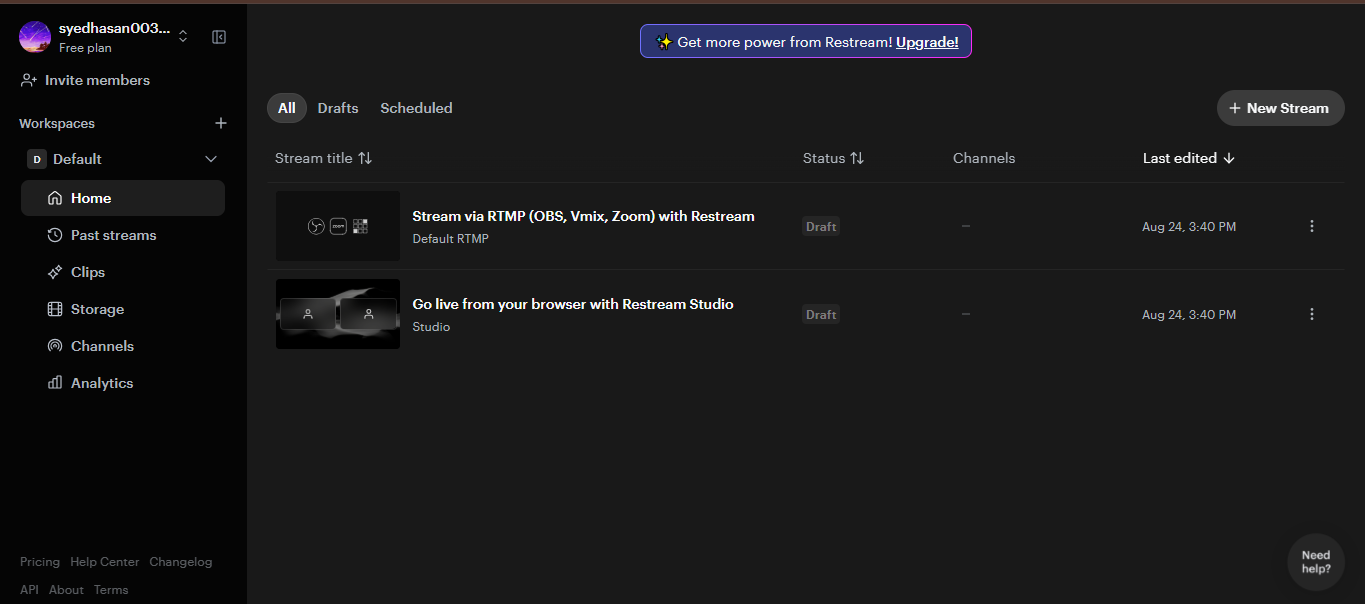
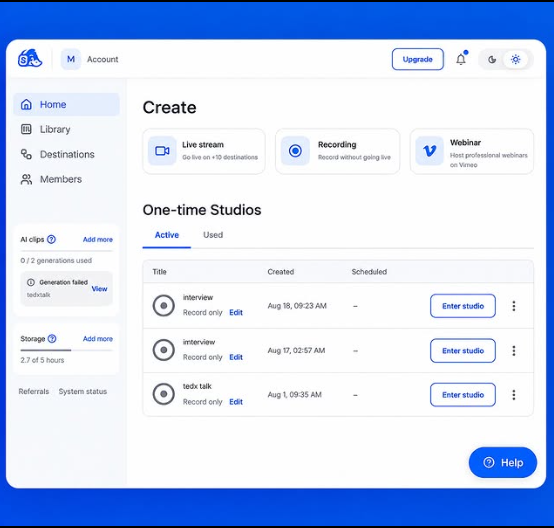
To use Restream for an interview, first create an account and set up your live stream. You can connect the social media platforms where you want your interview to appear. After that, prepare your interview space by checking your camera, microphone, internet connection, and lighting. A clear audio and video setup can make the interview much more enjoyable for viewers.
Next, invite your guest to join the interview. Before going live, it is a good idea to test the camera and microphone with your guest so that both of you are ready. You can prepare a few simple questions in advance, but you should also allow the conversation to flow naturally. Start the interview with a friendly introduction, introduce your guest, and explain the topic you will discuss.
During the interview, listen carefully to your guest and ask questions clearly. Avoid interrupting, give your guest enough time to answer, and keep the conversation interesting and respectful. Restream can help you manage the live broadcast while you focus on the conversation.
After the interview, you can review the recording, share highlights, and use the experience to improve your future interviews. Interviews are a great way to learn from other people, discover new ideas, improve communication skills, and build confidence in speaking.
Learning to use tools like Restream is also a valuable digital skill. With practice, students can become more comfortable with online communication, live streaming, teamwork, and content creation.
The goal is not only to conduct an interview, but also to learn how technology can connect people, share knowledge, and create meaningful conversations.
#Restream #OnlineInterview #LiveInterview #InterviewSkills #CommunicationSkills #DigitalSkills #ContentCreation #LiveStreaming #Learning #StudentProjects #Technology #RSF8
ROLL NO:13
TASK NO:9
How to Use Restream for Interviews?
Restream is a useful online platform that can make interviews, live conversations, and online sessions easier to organize and share. It allows you to connect with your guest and broadcast your interview to different platforms, helping more people watch and engage with your content.
To use Restream for an interview, first create an account and set up your live stream. You can connect the social media platforms where you want your interview to appear. After that, prepare your interview space by checking your camera, microphone, internet connection, and lighting. A clear audio and video setup can make the interview much more enjoyable for viewers.
Next, invite your guest to join the interview. Before going live, it is a good idea to test the camera and microphone with your guest so that both of you are ready. You can prepare a few simple questions in advance, but you should also allow the conversation to flow naturally. Start the interview with a friendly introduction, introduce your guest, and explain the topic you will discuss.
During the interview, listen carefully to your guest and ask questions clearly. Avoid interrupting, give your guest enough time to answer, and keep the conversation interesting and respectful. Restream can help you manage the live broadcast while you focus on the conversation.
After the interview, you can review the recording, share highlights, and use the experience to improve your future interviews. Interviews are a great way to learn from other people, discover new ideas, improve communication skills, and build confidence in speaking.
Learning to use tools like Restream is also a valuable digital skill. With practice, students can become more comfortable with online communication, live streaming, teamwork, and content creation.
The goal is not only to conduct an interview, but also to learn how technology can connect people, share knowledge, and create meaningful conversations.
#Restream #OnlineInterview #LiveInterview #InterviewSkills #CommunicationSkills #DigitalSkills #ContentCreation #LiveStreaming #Learning #StudentProjects #Technology #RSF8
RSIF8
ROLL NO:13
TASK NO:9
🎥 How to Use Restream for Interviews? 🎤🌐
Restream is a useful online platform that can make interviews, live conversations, and online sessions easier to organize and share. It allows you to connect with your guest and broadcast your interview to different platforms, helping more people watch and engage with your content.
To use Restream for an interview, first create an account and set up your live stream. You can connect the social media platforms where you want your interview to appear. After that, prepare your interview space by checking your camera, microphone, internet connection, and lighting. A clear audio and video setup can make the interview much more enjoyable for viewers.
Next, invite your guest to join the interview. Before going live, it is a good idea to test the camera and microphone with your guest so that both of you are ready. You can prepare a few simple questions in advance, but you should also allow the conversation to flow naturally. Start the interview with a friendly introduction, introduce your guest, and explain the topic you will discuss.
During the interview, listen carefully to your guest and ask questions clearly. Avoid interrupting, give your guest enough time to answer, and keep the conversation interesting and respectful. Restream can help you manage the live broadcast while you focus on the conversation.
After the interview, you can review the recording, share highlights, and use the experience to improve your future interviews. Interviews are a great way to learn from other people, discover new ideas, improve communication skills, and build confidence in speaking.
Learning to use tools like Restream is also a valuable digital skill. With practice, students can become more comfortable with online communication, live streaming, teamwork, and content creation. 🚀💻
✨ The goal is not only to conduct an interview, but also to learn how technology can connect people, share knowledge, and create meaningful conversations.
#Restream #OnlineInterview #LiveInterview #InterviewSkills #CommunicationSkills #DigitalSkills #ContentCreation #LiveStreaming #Learning #StudentProjects #Technology #RSF8🎓✨
0 Commenti
0 condivisioni
527 Views