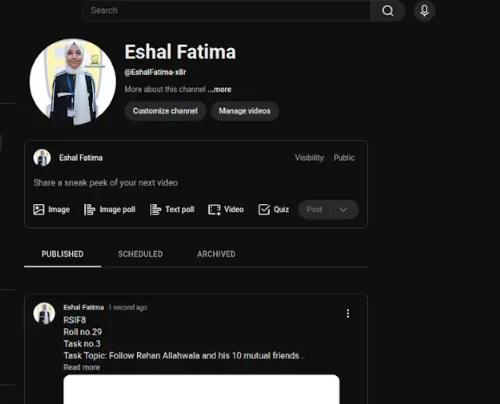


• RSIF8
    Roll no.29
    Task no.4
    Task Topic: How to create a YouTube account

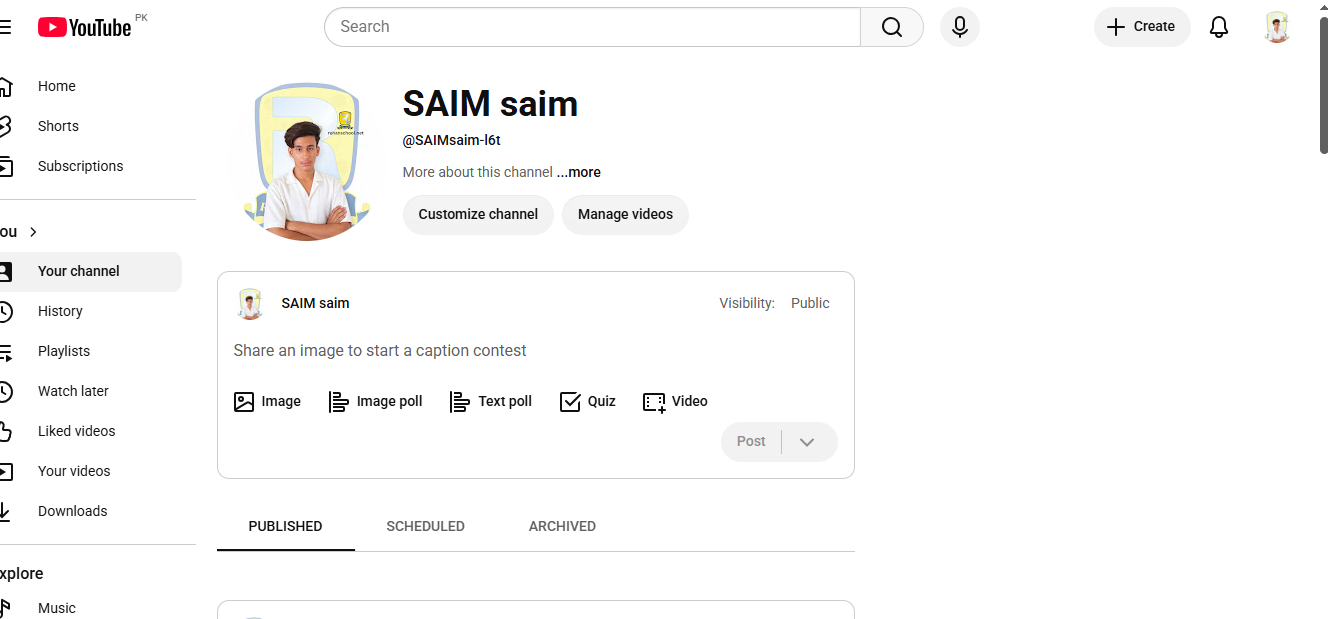
    Starting your journey on YouTube is incredibly easy! Because YouTube is owned by Google, your passport to the platform is simply a Google Account. Whether you want to subscribe to your favorite creators, save playlists, or start uploading your own videos, here is exactly how to set up your account in just a few minutes.

    **Step 1: Sign In with Google**
    First, open your web browser and head over to YouTube.com, or simply open the YouTube app on your mobile device. Click the "Sign In" button located in the top right-hand corner of the screen. Enter your existing Google or Gmail credentials to log in. If you do not have a Google account yet, click "Create account" and follow the quick prompts to set one up.

    **Step 2: Access the Channel Creation Menu**
    Once you are logged in, look at the top right corner of the page where your profile icon is located. Click on your profile picture, and a dropdown menu will appear. From this menu, click on the option that says "Create a channel."

    **Step 3: Choose Your Account Type**
    You will now see a prompt asking how you want to create your channel. You have two choices:

    * **Personal Channel:** Choose this if you want to use your own name and profile picture.
    * **Brand/Business Channel:** Choose this if you want to use a custom name, a business name, or if you plan to have multiple people manage the account with you in the future.

    **Step 4: Customize and Launch**
    Name your channel, upload a profile picture, and add a brief bio to your "About" section telling viewers what your channel is all about. Once you click "Create," your brand new YouTube account is fully active and ready for action!

    ---

    #YouTube #HowTo #YouTubeTutorial #CreateAccount #TechTips ContentCreator #NewChannel #TechGuide #YouTubeCommunity
    RSIF8 Roll no.29 Task no.4 Task Topic: How to create a YouTube account Starting your journey on YouTube is incredibly easy! Because YouTube is owned by Google, your passport to the platform is simply a Google Account. Whether you want to subscribe to your favorite creators, save playlists, or start uploading your own videos, here is exactly how to set up your account in just a few minutes. **Step 1: Sign In with Google** First, open your web browser and head over to YouTube.com, or simply open the YouTube app on your mobile device. Click the "Sign In" button located in the top right-hand corner of the screen. Enter your existing Google or Gmail credentials to log in. If you do not have a Google account yet, click "Create account" and follow the quick prompts to set one up. **Step 2: Access the Channel Creation Menu** Once you are logged in, look at the top right corner of the page where your profile icon is located. Click on your profile picture, and a dropdown menu will appear. From this menu, click on the option that says "Create a channel." **Step 3: Choose Your Account Type** You will now see a prompt asking how you want to create your channel. You have two choices: * **Personal Channel:** Choose this if you want to use your own name and profile picture. * **Brand/Business Channel:** Choose this if you want to use a custom name, a business name, or if you plan to have multiple people manage the account with you in the future. **Step 4: Customize and Launch** Name your channel, upload a profile picture, and add a brief bio to your "About" section telling viewers what your channel is all about. Once you click "Create," your brand new YouTube account is fully active and ready for action! --- #YouTube ✨#HowTo #YouTubeTutorial #CreateAccount #TechTips πŸš€ContentCreator #NewChannel πŸŽ₯ #TechGuide #YouTubeCommunityπŸ“±
    0 Commenti 0 condivisioni 2714 Views
  • RSIF8
    Roll no. 83
    Task no.2
    Task Topic: How to make a facebook
    How to Make a Facebook Account and Set It Up
    Creating a Facebook account is simple and only takes a few minutes. Follow these steps:
    Step 1: Visit Facebook
    Go to Facebook
    Step 2: Create a New Account
    Click "Create New Account" and enter:
    First and Last Name
    Mobile Number or Email Address
    Password
    Date of Birth
    Gender
    Step 3: Verify Your Account
    Facebook will send a verification code to your email or phone. Enter the code to confirm your account.
    Step 4: Add a Profile Picture
    Upload a clear photo of yourself so friends can recognize you.
    Step 5: Complete Your Profile
    Add:
    City or Hometown
    Education
    Workplace
    Interests and Hobbies
    Step 6: Find Friends
    Use the search bar to find friends and family and send friend requests.
    Step 7: Adjust Privacy Settings
    Go to Settings & Privacy to control:
    Who can see your posts
    Who can send friend requests
    Who can view your profile
    Step 8: Start Using Facebook
    Now you can:
    Like posts
    Comment on posts
    Share photos and videos
    Create your own posts
    Watch videos and join groups
    Your Facebook Account Is Ready!
    Stay connected, share moments, and interact with friends around the world.
    #Facebook
    #SocialMedia
    #FacebookAccount
    #CreateAccount
    #OnlineCommunity
    #DigitalLife
    #ConnectWithFriends
    #FacebookTips
    #TechGuide
    #StayConnected See less
    14w
    RSIF8 Roll no. 83 Task no.2 Task Topic: How to make a facebook πŸ“˜βœ¨ How to Make a Facebook Account and Set It Up βœ¨πŸ“˜ Creating a Facebook account is simple and only takes a few minutes. Follow these steps: πŸ“ Step 1: Visit Facebook Go to 🌐 Facebook πŸ‘€ Step 2: Create a New Account Click "Create New Account" and enter: βœ… First and Last Name βœ… Mobile Number or Email Address βœ… Password πŸ”’ βœ… Date of Birth πŸŽ‚ βœ… Gender πŸ“© Step 3: Verify Your Account Facebook will send a verification code to your email or phone. Enter the code to confirm your account. πŸ–ΌοΈ Step 4: Add a Profile Picture Upload a clear photo of yourself so friends can recognize you. πŸ“„ Step 5: Complete Your Profile Add: 🏠 City or Hometown πŸŽ“ Education πŸ’Ό Workplace ❀️ Interests and Hobbies πŸ‘₯ Step 6: Find Friends Use the search bar to find friends and family and send friend requests. βš™οΈ Step 7: Adjust Privacy Settings Go to Settings & Privacy to control: πŸ”’ Who can see your posts πŸ‘₯ Who can send friend requests πŸ“Έ Who can view your profile πŸ“± Step 8: Start Using Facebook Now you can: πŸ‘ Like posts πŸ’¬ Comment on posts πŸ“Έ Share photos and videos πŸ“’ Create your own posts πŸŽ₯ Watch videos and join groups πŸŽ‰ Your Facebook Account Is Ready! Stay connected, share moments, and interact with friends around the world. πŸŒπŸ’™ #Facebook πŸ“˜ #SocialMedia πŸ“± #FacebookAccount πŸ‘€ #CreateAccount ✨ #OnlineCommunity 🌍 #DigitalLife πŸ’» #ConnectWithFriends πŸ‘₯ #FacebookTips πŸ’‘ #TechGuide πŸš€ #StayConnected πŸ’™ See less 14w
    0 Commenti 0 condivisioni 3602 Views
  • RSIF8
    Roll no 101
    task no 04
    task topic How to Create a YouTube Account?
    Ready to explore YouTube and discover amazing videos? This simple and beginner-friendly tutorial will guide you through the basics of creating and setting up a YouTube account.

    Whether you're completely new to YouTube or just want to understand how the platform works, this guide will help you get started step by step.

    In this video, you'll learn:
    How to get started with YouTube
    How to sign in using a Google Account
    How to set up your YouTube profile
    How to search for videos and channels
    How to subscribe to channels
    How to save videos for later
    How to manage basic account settings
    Helpful privacy and safety tips

    Perfect for beginners! Follow along with the tutorial and learn the essential YouTube features at your own pace.

    Start your YouTube experience today and discover content, creators, and topics you enjoy!

    Like the video
    Share your thoughts
    Follow for more simple tech tutorials
    Share this guide with someone who is new to YouTube!

    #YouTube #YouTubeAccount #CreateYouTubeAccount #YouTubeTutorial #YouTubeGuide #YouTubeTips #HowTo #StepByStep #YouTubeForBeginners #BeginnerTutorial #GoogleAccount #TechTips #Technology #DigitalSkills #LearnYouTube #OnlineTutorial #VideoTutorial #TechGuide #DigitalLearning #SocialMediaTips #EasyGuide #YouTubeHelp #Tutorial #LearnTechnology #NewToYouTube
    RSIF8 Roll no 101 task no 04 task topic How to Create a YouTube Account? Ready to explore YouTube and discover amazing videos? 🌎✨ This simple and beginner-friendly tutorial will guide you through the basics of creating and setting up a YouTube account. πŸ“±πŸ’» Whether you're completely new to YouTube or just want to understand how the platform works, this guide will help you get started step by step. 😊 πŸ“Œ In this video, you'll learn: πŸ”Ή How to get started with YouTube πŸ”Ή How to sign in using a Google Account πŸ” πŸ”Ή How to set up your YouTube profile πŸ‘€ πŸ”Ή How to search for videos and channels πŸ”Ž πŸ”Ή How to subscribe to channels πŸ”” πŸ”Ή How to save videos for later ⭐ πŸ”Ή How to manage basic account settings βš™οΈ πŸ”Ή Helpful privacy and safety tips πŸ”’ πŸ’‘ Perfect for beginners! Follow along with the tutorial and learn the essential YouTube features at your own pace. 🎬 Start your YouTube experience today and discover content, creators, and topics you enjoy! 🌟 πŸ‘ Like the video πŸ’¬ Share your thoughts πŸ”” Follow for more simple tech tutorials πŸ“² Share this guide with someone who is new to YouTube! #YouTube #YouTubeAccount #CreateYouTubeAccount #YouTubeTutorial #YouTubeGuide #YouTubeTips #HowTo #StepByStep #YouTubeForBeginners #BeginnerTutorial #GoogleAccount #TechTips #Technology #DigitalSkills #LearnYouTube #OnlineTutorial #VideoTutorial #TechGuide #DigitalLearning #SocialMediaTips #EasyGuide #YouTubeHelp #Tutorial #LearnTechnology #NewToYouTube πŸŽ₯πŸ“±πŸ’»βœ¨πŸš€
    0 Commenti 0 condivisioni 6950 Views
  • RSIF8
    Roll No:64
    Task No 5
    Task topic How to Create an Instagram
    Account?
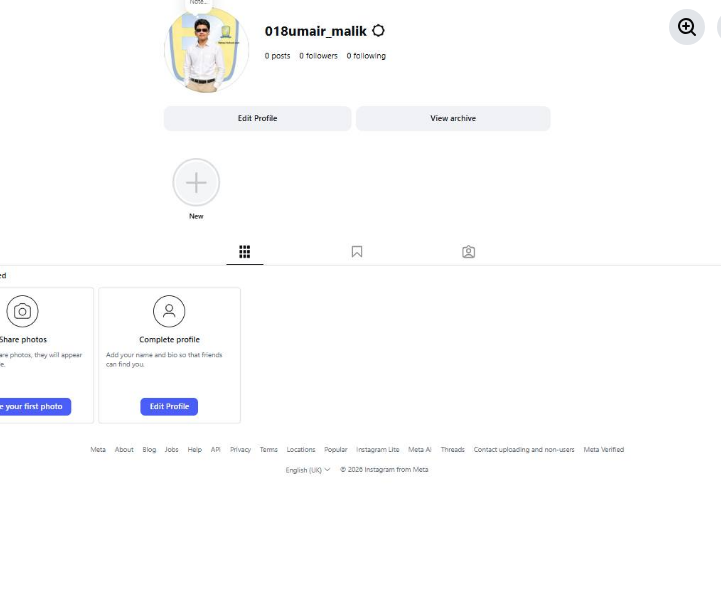
    Creating an Instagram account is very easy and quick. First, download the Instagram app from the Play Store or App Store. Open the app and tap on “Create New Account.” You can sign up using your email or phone number. Then enter your full name, choose a unique username, and set a strong password. Add a profile picture and optional bio. After that, verify your account with the code sent to your email or phone. Once completed, your account is ready to use!
    Now you can follow friends, post photos , watch reels , and explore amazing content
    hashtag#Hashtags
    hashtag#Instagram hashtag#InstagramAccount hashtag#SocialMedia hashtag#CreateAccount hashtag#HowToGuide hashtag#InstagramTips hashtag#TechGuide hashtag#OnlineLearning hashtag#DigitalWorld hashtag#BeginnerGuide
    RSIF8 Roll No:64 Task No 5 Task topic How to Create an Instagram Account? Creating an Instagram account is very easy and quick. First, download the Instagram app from the Play Store or App Store. Open the app and tap on “Create New Account.” You can sign up using your email or phone number. Then enter your full name, choose a unique username, and set a strong password. Add a profile picture and optional bio. After that, verify your account with the code sent to your email or phone. Once completed, your account is ready to use! πŸŽ‰ Now you can follow friends, post photos πŸ“Έ, watch reels πŸŽ₯, and explore amazing content 🌍✨ hashtag#Hashtags hashtag#Instagram hashtag#InstagramAccount hashtag#SocialMedia hashtag#CreateAccount hashtag#HowToGuide hashtag#InstagramTips hashtag#TechGuide hashtag#OnlineLearning hashtag#DigitalWorld hashtag#BeginnerGuide πŸ“±βœ¨
    0 Commenti 0 condivisioni 2607 Views
  • #rsisb
    Roll No 244
    Foundation level
    Task no 8
    How to Download and Use Sesame?
    Want to get started with Sesame? Download the Sesame app from your device's app store, install it, create your account, and follow the simple setup process. Once you're in, explore its features, customize your profile, and start enjoying a smarter and more productive experience.
    Whether you're a beginner or a tech enthusiast, Sesame makes it easy to connect, learn, and achieve more!
    #Sesame #DownloadSesame #SesameApp #TechTips #DigitalSkills #LearnTechnology #OnlineLearning #ProductivityTools #MobileApps #TechGuide #

    #rsisb Roll No 244 Foundation level Task no 8 πŸ“² How to Download and Use Sesame? πŸš€ Want to get started with Sesame? 🌟 Download the Sesame app from your device's app store, install it, create your account, and follow the simple setup process. πŸ› οΈ Once you're in, explore its features, customize your profile, and start enjoying a smarter and more productive experience. πŸ’‘βœ¨ Whether you're a beginner or a tech enthusiast, Sesame makes it easy to connect, learn, and achieve more! πŸŽ―πŸ“± #Sesame #DownloadSesame #SesameApp #TechTips #DigitalSkills #LearnTechnology #OnlineLearning #ProductivityTools #MobileApps #TechGuide πŸš€πŸ“²#
    0 Commenti 0 condivisioni 5969 Views