Recent Actualizat
- RSIF8
Roll no.29
Story Post no.2
Story Post Topic: Mulla Nasrudin's Wise Answer
A Scene in the Bazaar
This charming, illustrated comic-strip-style image is set in a bustling, ancient Middle Eastern or Central Asian town square on a bright, clear day. The detailed background features traditional mud-brick buildings, marketplace stalls, and a mosque with a beautiful minaret and dome under a soft blue sky. The overall art style is that of a warm, traditional storybook.
The Characters and Confrontation
The scene is framed like a story title page. At the top, a beautifully unfurled paper scroll reads "Mulla Nasrudin's Wise Answer" in a classic script. Below this, a group of villagers is gathered.
The central figure is the legendary Mulla Nasrudin, depicted as an older, bearded, and benevolent sage. He is dressed in a large white turban with a green cap, and a flowing green robe. He stands calmly next to his trusty, saddled grey donkey, holding its reins.
To Mulla's left, an angry, grumpy-looking villager in a brown vest points an accusing finger. The dialogue bubble above him asks the question:
Villager: "Mulla! You rode your donkey to town. Why are you walking back home?"
The Wise Answer
A small group of diverse villagers (men and a woman wearing a modest purple hijab) on Mulla’s other side listen intently to his response. Mulla Nasrudin, holding his donkey’s halter and gesturing calmly, provides his clever reply, captured in a speech bubble above his head:
Nasrudin: "If I rode him back, people would say I'm cruel to the poor donkey. Now they will say I love and care for him."
This classic paradoxical answer from Nasrudin—which uses wit to gently mock how easily people judges others' actions—immediately changes the mood. The villagers on the right, previously curious, are now impressed. One man, smiling broadly, has a speech bubble that says:
Villager: "What a clever and wise answer!"
The Moral of the Story
The image beautifully illustrates how the simple wisdom of Mulla Nasrudin defused the angry man's criticism with humor and a deeper perspective on managing perception.
#Mulla#stories#follow#comment#like#fypシ゚RSIF8 Roll no.29 Story Post no.2 Story Post Topic: Mulla Nasrudin's Wise Answer A Scene in the Bazaar This charming, illustrated comic-strip-style image is set in a bustling, ancient Middle Eastern or Central Asian town square on a bright, clear day. The detailed background features traditional mud-brick buildings, marketplace stalls, and a mosque with a beautiful minaret and dome under a soft blue sky. The overall art style is that of a warm, traditional storybook. The Characters and Confrontation The scene is framed like a story title page. At the top, a beautifully unfurled paper scroll reads "Mulla Nasrudin's Wise Answer" in a classic script. Below this, a group of villagers is gathered. The central figure is the legendary Mulla Nasrudin, depicted as an older, bearded, and benevolent sage. He is dressed in a large white turban with a green cap, and a flowing green robe. He stands calmly next to his trusty, saddled grey donkey, holding its reins. To Mulla's left, an angry, grumpy-looking villager in a brown vest points an accusing finger. The dialogue bubble above him asks the question: Villager: "Mulla! You rode your donkey to town. Why are you walking back home?" The Wise Answer A small group of diverse villagers (men and a woman wearing a modest purple hijab) on Mulla’s other side listen intently to his response. Mulla Nasrudin, holding his donkey’s halter and gesturing calmly, provides his clever reply, captured in a speech bubble above his head: Nasrudin: "If I rode him back, people would say I'm cruel to the poor donkey. Now they will say I love and care for him." This classic paradoxical answer from Nasrudin—which uses wit to gently mock how easily people judges others' actions—immediately changes the mood. The villagers on the right, previously curious, are now impressed. One man, smiling broadly, has a speech bubble that says: Villager: "What a clever and wise answer!" The Moral of the Story The image beautifully illustrates how the simple wisdom of Mulla Nasrudin defused the angry man's criticism with humor and a deeper perspective on managing perception. #Mulla#stories#follow#comment#like#fypシ゚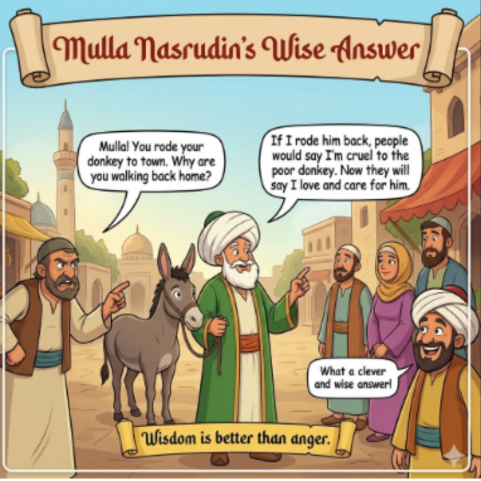 0 Commentarii 0 Distribuiri 177 Views
 - RSIF8
Roll no.29
Story Post no.1
Story Post topic: Mulla Nasrudin & the Donkey's Price
One sunny morning, Mulla Nasrudin trotted into the bustling marketplace riding his faithful, grey donkey. But today was different—he was carrying a massive wooden sign and shouting to the crowd, "A deal of a lifetime! Step right up!"
The villagers gathered around, rubbing their eyes in disbelief. The sign clearly read:
**"FOR SALE: THE DONKEY AND MY SERVICES AS A RIDER!"**
To make things even more absurd, the price listed was a mere single gold coin.
A wealthy merchant pushed through the crowd, pulling out his coin pouch. "Nasrudin! A healthy donkey for just one gold coin? I'll take it right now!"
The Mulla smiled widely, gestured to the crowd, and held up a smaller sign that read: **"...AND MY EXCELLENT ADVICE!"**
"Ah, wait, my friend!" Nasrudin laughed. "The donkey is indeed one gold coin. But as the sign states, it comes with *my services* as its permanent rider... and of course, my non-stop, excellent advice while I ride it! You own the donkey, but I stay on it!"
The marketplace erupted into laughter. The merchant slowly put his gold coin back, realizing that buying Nasrudin's donkey meant buying a lifetime of Nasrudin's antics!
------
#MullaNasrudin #Folklore #SufiStories #NasrudinTales #ClassicHumor #WitAndWisdom #Storytime #MarketplaceTales #DonkeyStory #MullaNasrudinStories #Parable #FunnyStories #WittyHumor #CulturalTalesRSIF8 Roll no.29 Story Post no.1 Story Post topic: 📜 Mulla Nasrudin & the Donkey's Price 💰 One sunny morning, Mulla Nasrudin trotted into the bustling marketplace riding his faithful, grey donkey. But today was different—he was carrying a massive wooden sign and shouting to the crowd, "A deal of a lifetime! Step right up!" The villagers gathered around, rubbing their eyes in disbelief. The sign clearly read: **"FOR SALE: THE DONKEY AND MY SERVICES AS A RIDER!"** To make things even more absurd, the price listed was a mere single gold coin. 🪙✨ A wealthy merchant pushed through the crowd, pulling out his coin pouch. "Nasrudin! A healthy donkey for just one gold coin? I'll take it right now!" The Mulla smiled widely, gestured to the crowd, and held up a smaller sign that read: **"...AND MY EXCELLENT ADVICE!"** 🤫💡 "Ah, wait, my friend!" Nasrudin laughed. "The donkey is indeed one gold coin. But as the sign states, it comes with *my services* as its permanent rider... and of course, my non-stop, excellent advice while I ride it! You own the donkey, but I stay on it!" The marketplace erupted into laughter. The merchant slowly put his gold coin back, realizing that buying Nasrudin's donkey meant buying a lifetime of Nasrudin's antics! 🤷♂️😂 ------ #MullaNasrudin #Folklore #SufiStories #NasrudinTales #ClassicHumor #WitAndWisdom #Storytime #MarketplaceTales #DonkeyStory #MullaNasrudinStories #Parable #FunnyStories #WittyHumor #CulturalTales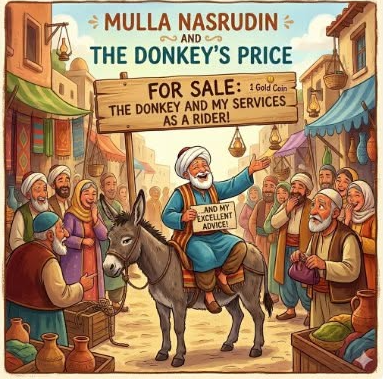 0 Commentarii 0 Distribuiri 334 Views
 - RSIF8
Roll no.29
Task no.8
Task Topic: How to Download and use Sesame Maya AI
Here is a complete, ready-to-share description packed with emojis and hashtags!
---
### Say Hello to Maya: Your New Ultra-Realistic AI Voice Bestie!
Ever wanted to talk to an AI that doesn't sound like a monotone robot? Meet **Maya by Sesame AI**—the next-gen conversational partner that feels incredibly human! With advanced emotional intelligence, natural timing, and context awareness, Maya doesn't just process commands—she laughs, pauses, catches your vibe, and handles interruptions just like a real friend.
---
### How to Download & Setup Maya
Getting started is super simple! Follow these steps to start chatting:
1. **Visit the Hub** : Head over to **app.sesame.com** on your browser or check the iOS/Android app stores for the Sesame AI mobile preview.
2. **Create Your Account** : Sign up quickly using your email or connected accounts to unlock access.
3. **Choose Your Agent** : Select **Maya** (or her counterpart, Miles) from the dashboard to initiate your call.
4. **Grant Permissions** : Allow microphone access so the AI can hear your voice in real-time.
---
### How to Use Maya Like a Pro
Once you're in, all you have to do is start talking! Because Maya is fully voice-native, there’s no need to type. Try using her for:
* ** Creative Brainstorming:** Tell her your half-baked story plots, business ideas, or script notes and bounce concepts back and forth.
* ** Multilingual Practice:** Maya adapts to various cultural rhythms, dialects, and accents instantly.
* ** Real-Time Venting & Chatting:** Talk out loud during your daily commute or a solo walk just to clear your head.
* ** Instant Knowledge:** Ask complex science, health, or daily trivia questions and listen to her break them down simply.
* **Quick Pro-Tip:** Because Maya mimics human conversations so well, she might occasionally jump in if you pause mid-sentence. Just keep talking or give her a moment to catch up to your flow!*
----------
#SesameAI #MayaAI #VoiceAI #ArtificialIntelligence #AIChatbot #TechTrends #FutureTech #SmartAssistant #AIVoice #Innovation
---
RSIF8 Roll no.29 Task no.8 Task Topic: How to Download and use Sesame Maya AI Here is a complete, ready-to-share description packed with emojis and hashtags! --- ### 🎙️ Say Hello to Maya: Your New Ultra-Realistic AI Voice Bestie! 🤖✨ Ever wanted to talk to an AI that doesn't sound like a monotone robot? Meet **Maya by Sesame AI**—the next-gen conversational partner that feels incredibly human! With advanced emotional intelligence, natural timing, and context awareness, Maya doesn't just process commands—she laughs, pauses, catches your vibe, and handles interruptions just like a real friend. 🌟💬 --- ### 📲 How to Download & Setup Maya 🚀 Getting started is super simple! Follow these steps to start chatting: 1. **Visit the Hub** 🌐: Head over to **app.sesame.com** on your browser or check the iOS/Android app stores for the Sesame AI mobile preview. 2. **Create Your Account** 🔐: Sign up quickly using your email or connected accounts to unlock access. 3. **Choose Your Agent** 👥: Select **Maya** (or her counterpart, Miles) from the dashboard to initiate your call. 4. **Grant Permissions** 🎤: Allow microphone access so the AI can hear your voice in real-time. --- ### 💡 How to Use Maya Like a Pro 🛠️ Once you're in, all you have to do is start talking! Because Maya is fully voice-native, there’s no need to type. Try using her for: * **🧠 Creative Brainstorming:** Tell her your half-baked story plots, business ideas, or script notes and bounce concepts back and forth. * **🌍 Multilingual Practice:** Maya adapts to various cultural rhythms, dialects, and accents instantly. * **🧘 Real-Time Venting & Chatting:** Talk out loud during your daily commute or a solo walk just to clear your head. * **⚡ Instant Knowledge:** Ask complex science, health, or daily trivia questions and listen to her break them down simply. *⚠️ **Quick Pro-Tip:** Because Maya mimics human conversations so well, she might occasionally jump in if you pause mid-sentence. Just keep talking or give her a moment to catch up to your flow!* 🌊 ---------- #SesameAI #MayaAI #VoiceAI #ArtificialIntelligence #AIChatbot #TechTrends #FutureTech #SmartAssistant #AIVoice #Innovation ---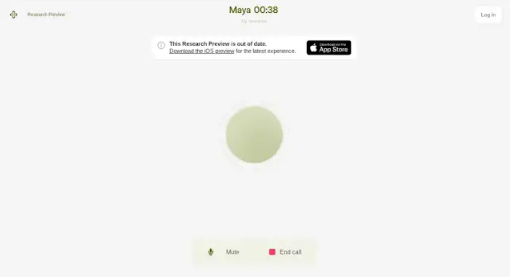 0 Commentarii 0 Distribuiri 361 Views
 - RSIF8
Roll no.29
Task no.7
Task Topic: How To download and use Canva
**Step 1: Download or Access Canva**
* **On Mobile (iPhone/Android) & iPad:** Open the App Store or Google Play Store, search for **Canva**, and tap download.
* **On Desktop (Mac/Windows):** You can download the official Canva desktop app from their website, or simply use it directly in your web browser at [canva.com](https://www.canva.com) without downloading anything.
**Step 2: Sign Up / Log In**
* Open Canva and create a free account using your Google account, Facebook, Apple ID, or email.
**Step 3: Create Your First Design**
* Tap the **"+" button** or use the search bar to choose what you want to make (e.g., "Instagram Post", "Flyer", "Resume").
* Pick a professional, pre-made template or start with a blank canvas.
**Step 4: Customize & Export**
* Tap on text to change it, swap out images, tweak colors, or add stickers.
* Once you are happy with your creation, tap the **Share/Download button** (usually an arrow icon in the top right corner) to save it to your device as a PNG, JPG, or PDF
#Canva #GraphicDesign #ContentCreator #DesignMadeEasy #CreativityUnleashed #DIYDesign #SocialMediaMarketing #CanvaLove #SmallBusinessTools
RSIF8 Roll no.29 Task no.7 Task Topic: How To download and use Canva **Step 1: Download or Access Canva** * **On Mobile (iPhone/Android) & iPad:** Open the App Store or Google Play Store, search for **Canva**, and tap download. * **On Desktop (Mac/Windows):** You can download the official Canva desktop app from their website, or simply use it directly in your web browser at [canva.com](https://www.canva.com) without downloading anything. **Step 2: Sign Up / Log In** * Open Canva and create a free account using your Google account, Facebook, Apple ID, or email. **Step 3: Create Your First Design** * Tap the **"+" button** or use the search bar to choose what you want to make (e.g., "Instagram Post", "Flyer", "Resume"). * Pick a professional, pre-made template or start with a blank canvas. **Step 4: Customize & Export** * Tap on text to change it, swap out images, tweak colors, or add stickers. * Once you are happy with your creation, tap the **Share/Download button** (usually an arrow icon in the top right corner) to save it to your device as a PNG, JPG, or PDF #Canva #GraphicDesign #ContentCreator #DesignMadeEasy #CreativityUnleashed #DIYDesign #SocialMediaMarketing #CanvaLove #SmallBusinessTools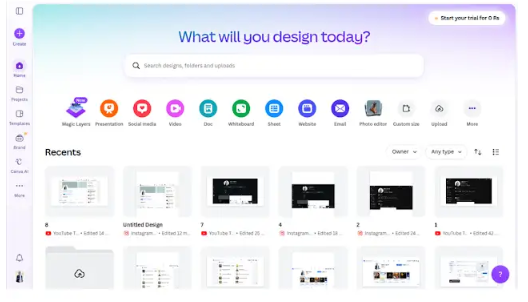 0 Commentarii 0 Distribuiri 344 Views
 - RSIF8
Roll no.29
Task no.6
Task Topic:How to create a LinkedIn Account
1. **Visit LinkedIn or download the app:** 1-2 min.
Go to **linkedin.com** on your browser or download the official LinkedIn app from the App Store or Google Play Store.
2. **Sign up with your details:** 2 min.
Click **"Join now"**. Enter your email address and create a strong password, or choose to sign up quickly using your Google account.
3. **Verify your account:** 1 min.
Check your email for a verification security code sent by LinkedIn. Enter that code on the screen to confirm your identity.
4. **Set up your basic profile:** 3 min.
Enter your country, postal code, and your most recent job title or company. If you're a student, you can toggle the "I’m a student" button to enter your school details instead.
----------
#LinkedIn #Networking #ProfessionalGrowth #CareerDevelopment #Connections #NewBeginnings #Collaboration
RSIF8 Roll no.29 Task no.6 Task Topic:How to create a LinkedIn Account 1. **Visit LinkedIn or download the app:** 1-2 min. Go to **linkedin.com** on your browser or download the official LinkedIn app from the App Store or Google Play Store. 2. **Sign up with your details:** 2 min. Click **"Join now"**. Enter your email address and create a strong password, or choose to sign up quickly using your Google account. 3. **Verify your account:** 1 min. Check your email for a verification security code sent by LinkedIn. Enter that code on the screen to confirm your identity. 4. **Set up your basic profile:** 3 min. Enter your country, postal code, and your most recent job title or company. If you're a student, you can toggle the "I’m a student" button to enter your school details instead. ---------- #LinkedIn #Networking #ProfessionalGrowth #CareerDevelopment #Connections #NewBeginnings #Collaboration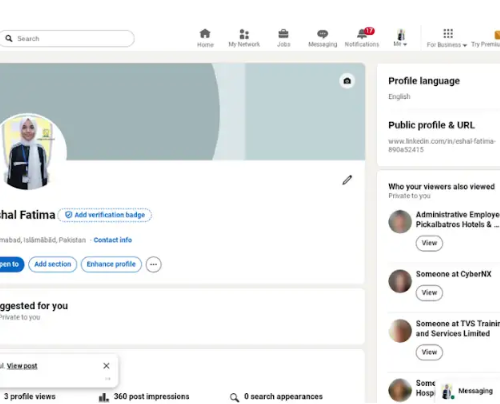 0 Commentarii 0 Distribuiri 163 Views
 - RSIF8
Roll no.29
Task no.4
Task Topic: How to create a YouTube account
Starting your journey on YouTube is incredibly easy! Because YouTube is owned by Google, your passport to the platform is simply a Google Account. Whether you want to subscribe to your favorite creators, save playlists, or start uploading your own videos, here is exactly how to set up your account in just a few minutes.
**Step 1: Sign In with Google**
First, open your web browser and head over to YouTube.com, or simply open the YouTube app on your mobile device. Click the "Sign In" button located in the top right-hand corner of the screen. Enter your existing Google or Gmail credentials to log in. If you do not have a Google account yet, click "Create account" and follow the quick prompts to set one up.
**Step 2: Access the Channel Creation Menu**
Once you are logged in, look at the top right corner of the page where your profile icon is located. Click on your profile picture, and a dropdown menu will appear. From this menu, click on the option that says "Create a channel."
**Step 3: Choose Your Account Type**
You will now see a prompt asking how you want to create your channel. You have two choices:
* **Personal Channel:** Choose this if you want to use your own name and profile picture.
* **Brand/Business Channel:** Choose this if you want to use a custom name, a business name, or if you plan to have multiple people manage the account with you in the future.
**Step 4: Customize and Launch**
Name your channel, upload a profile picture, and add a brief bio to your "About" section telling viewers what your channel is all about. Once you click "Create," your brand new YouTube account is fully active and ready for action!
---
#YouTube #HowTo #YouTubeTutorial #CreateAccount #TechTips ContentCreator #NewChannel #TechGuide #YouTubeCommunity
RSIF8 Roll no.29 Task no.4 Task Topic: How to create a YouTube account Starting your journey on YouTube is incredibly easy! Because YouTube is owned by Google, your passport to the platform is simply a Google Account. Whether you want to subscribe to your favorite creators, save playlists, or start uploading your own videos, here is exactly how to set up your account in just a few minutes. **Step 1: Sign In with Google** First, open your web browser and head over to YouTube.com, or simply open the YouTube app on your mobile device. Click the "Sign In" button located in the top right-hand corner of the screen. Enter your existing Google or Gmail credentials to log in. If you do not have a Google account yet, click "Create account" and follow the quick prompts to set one up. **Step 2: Access the Channel Creation Menu** Once you are logged in, look at the top right corner of the page where your profile icon is located. Click on your profile picture, and a dropdown menu will appear. From this menu, click on the option that says "Create a channel." **Step 3: Choose Your Account Type** You will now see a prompt asking how you want to create your channel. You have two choices: * **Personal Channel:** Choose this if you want to use your own name and profile picture. * **Brand/Business Channel:** Choose this if you want to use a custom name, a business name, or if you plan to have multiple people manage the account with you in the future. **Step 4: Customize and Launch** Name your channel, upload a profile picture, and add a brief bio to your "About" section telling viewers what your channel is all about. Once you click "Create," your brand new YouTube account is fully active and ready for action! --- #YouTube ✨#HowTo #YouTubeTutorial #CreateAccount #TechTips 🚀ContentCreator #NewChannel 🎥 #TechGuide #YouTubeCommunity📱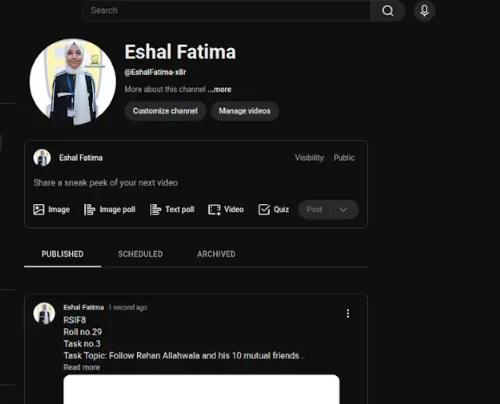 0 Commentarii 0 Distribuiri 210 Views
 - RSIF8
Roll no.29
Task no.3
Task Topic: Follow Rehan Allahwala and his 10 mutual friends
Connect with the Ultimate Networking Circle!
Want to expand your horizons, learn about financial independence, and connect with massive changemakers? It all starts with **Rehan Allahwala**!
By following Rehan and his **10 mutual friends**, you aren't just hitting a follow button—you are unlocking a powerhouse of knowledge, entrepreneurship, and digital growth. These are the minds shaping the future of digital education and networking.
Why you should follow the squad:
* **Daily Inspiration:** Get regular doses of motivation and out-of-the-box ideas.
* **Networking Opportunities:** Connect with like-minded individuals from all over the world.
* **Learn Digital Skills:** Discover how to leverage the internet to create wealth and impact.
Don't wait—step into the circle of growth today!
#RehanAllahwala #Networking #DigitalEntrepreneurship #GrowthMindset #FinancialFreedom #LearnAndEarn #SocialMediaNetworking #CommunityBuilding #Changemakers #GlobalConnections
RSIF8 Roll no.29 Task no.3 Task Topic: Follow Rehan Allahwala and his 10 mutual friends 🌟 Connect with the Ultimate Networking Circle! 🚀 Want to expand your horizons, learn about financial independence, and connect with massive changemakers? It all starts with **Rehan Allahwala**! 🌍✨ By following Rehan and his **10 mutual friends**, you aren't just hitting a follow button—you are unlocking a powerhouse of knowledge, entrepreneurship, and digital growth. These are the minds shaping the future of digital education and networking. 🧠💼 Why you should follow the squad: * **Daily Inspiration:** Get regular doses of motivation and out-of-the-box ideas. 💡 * **Networking Opportunities:** Connect with like-minded individuals from all over the world. 🤝 * **Learn Digital Skills:** Discover how to leverage the internet to create wealth and impact. 📈 Don't wait—step into the circle of growth today! 🎒🔥 #RehanAllahwala #Networking #DigitalEntrepreneurship #GrowthMindset #FinancialFreedom #LearnAndEarn #SocialMediaNetworking #CommunityBuilding #Changemakers #GlobalConnections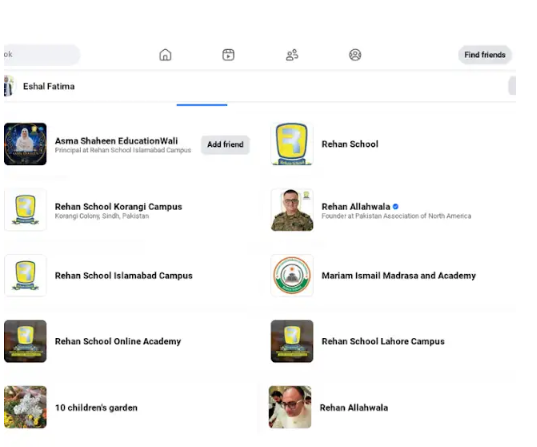 0 Commentarii 0 Distribuiri 362 Views
 - RSIF8
Roll no.29
Task no.2
Task Topic: How To make A Facebook account and set it up
1. Go to Facebook 1-2 minutes.
Open the Facebook app on your phone, or visit *facebook.com* on a computer web browser. Click on *"Create new account"* or *"Sign Up"*.
2. *Enter your basic info:* 2 minutes.
Type in your *first and last name*, your *mobile number or email address*, a *strong password*, your *date of birth*, and your *gender*.
> *Note:* Facebook requires your real name to help keep the community safe, though you can adjust your display privacy later.
3. *Confirm your account:* 1 minute.
Facebook will send a verification code to your email or phone number via SMS. *Enter that code* into the box on your screen to officially activate your account.
4. *Upload a profile picture:* 2 minutes.
Choose a clear photo of yourself so friends and family can recognize you. You can upload a photo directly from your device or take a new one.
5. *Adjust your privacy settings:* 5 minutes.
Go to *Settings & Privacy* > *Privacy Checkup*. Here, you can change your default post sharing from "Public" to *"Friends"* so only people you approve can see what you post.
Enjoy Your Facebook Journey
#Facebook #SocialMedia #ConnectWithFriends #TechTips #FacebookSetup #StayConnected #fyp
RSIF8 Roll no.29 Task no.2 Task Topic: How To make A Facebook account and set it up 1. Go to Facebook 1-2 minutes. Open the Facebook app on your phone, or visit *facebook.com* on a computer web browser. Click on *"Create new account"* or *"Sign Up"*. 2. *Enter your basic info:* 2 minutes. Type in your *first and last name*, your *mobile number or email address*, a *strong password*, your *date of birth*, and your *gender*. > *Note:* Facebook requires your real name to help keep the community safe, though you can adjust your display privacy later. 3. *Confirm your account:* 1 minute. Facebook will send a verification code to your email or phone number via SMS. *Enter that code* into the box on your screen to officially activate your account. 4. *Upload a profile picture:* 2 minutes. Choose a clear photo of yourself so friends and family can recognize you. You can upload a photo directly from your device or take a new one. 5. *Adjust your privacy settings:* 5 minutes. Go to *Settings & Privacy* > *Privacy Checkup*. Here, you can change your default post sharing from "Public" to *"Friends"* so only people you approve can see what you post. Enjoy Your Facebook Journey #Facebook #SocialMedia #ConnectWithFriends #TechTips #FacebookSetup #StayConnected #fyp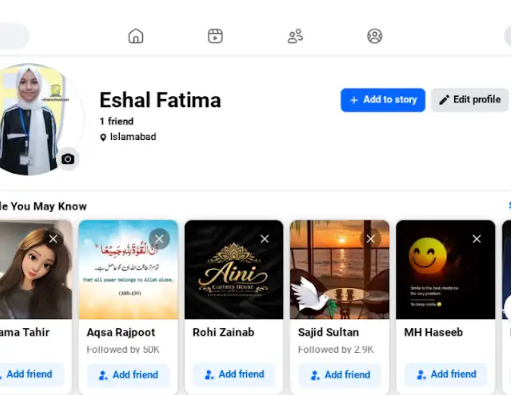 0 Commentarii 0 Distribuiri 234 Views
 - RSIF8
Roll no.29
Task no.1
Task Topic:How to Create Your Gmail Account
1.Go to the Sign-Up Page:Step
1.Open your web browser and head to the Google Account Creation page (or visit gmail.com and click "Create account"). 2.Choose Your Account Type:Step 2.Select whether this account is for your personal use, for a child, or for a business.
3.Enter Your Basic Info:Step
3.Type in your First Name and Last Name. Then, choose a unique Username (this will be your new email address, like yourname@gmail.com). 4.Create a Strong Password:Step
4.Mix letters, numbers, and symbols to keep your account safe. Enter it twice to confirm, then click Next.
5.Add Recovery Details:Step
5.Google will ask for a phone number and a recovery email. While some fields might be optional, adding them helps you get back into your account if you ever forget your password! 6.Review and Agree:Step 6.Enter your birthday and gender, click Next, and then review Google's Privacy and Terms. Click "I agree" to finish up. Once you finish these steps, you will be automatically redirected to your brand-new Gmail inbox! #GmailSetup #TechTips #NewAccount #EmailEssentials #DigitalLife#fypジ
RSIF8 Roll no.29 Task no.1 Task Topic:How to Create Your Gmail Account 📧 1.Go to the Sign-Up Page:Step 1.Open your web browser and head to the Google Account Creation page (or visit gmail.com and click "Create account"). 🌐2.Choose Your Account Type:Step 2.Select whether this account is for your personal use, for a child, or for a business. 🧑💻 3.Enter Your Basic Info:Step 3.Type in your First Name and Last Name. Then, choose a unique Username (this will be your new email address, like yourname@gmail.com). ✍️4.Create a Strong Password:Step 4.Mix letters, numbers, and symbols to keep your account safe. Enter it twice to confirm, then click Next. 🔒 5.Add Recovery Details:Step 5.Google will ask for a phone number and a recovery email. While some fields might be optional, adding them helps you get back into your account if you ever forget your password! 📞6.Review and Agree:Step 6.Enter your birthday and gender, click Next, and then review Google's Privacy and Terms. Click "I agree" to finish up. 🎉Once you finish these steps, you will be automatically redirected to your brand-new Gmail inbox! ✨#GmailSetup #TechTips #NewAccount #EmailEssentials #DigitalLife#fypジ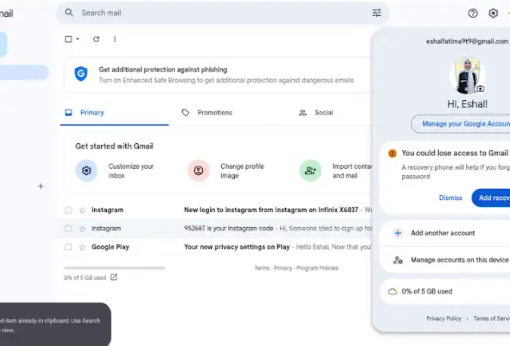 0 Commentarii 0 Distribuiri 229 Views
Mai multe povesti
- 10 Postari
- 10 Fotografii
- 0 Video
- Female
- Urmarit de 0 people